3.2.17 T-COM Web Interface
The ATRTU-TCOM controller hosts a built-in web server. Authorised operators use a browser on a phone, tablet, or PC that can reach the plant network. Screenshots below are from the live Lake Bennett panel (October 2026). Shared Pt# baselines: 3.2.16 T-COM Control Interface.
Authorised Personnel Only
Do not change setpoints without ENVR / Orenco authority. Credentials, IP addresses, and ports are not published in this public manual — obtain the URL from ENVR.
Same Data, Three UIs
Everything on these pages is the same controller database as T-COM Viewer and the local HMI.
When You Would Use the Web
Typical day-to-day use cases for this interface:
| Situation | What you do on the web |
|---|---|
| Alarm page arrives overnight | Log on → open the relevant Status page → note pump state, amps, and any alarm flags → call ENVR with the reading |
| Weekly walkover from the office | Check RT1 Status, DT1 Status, and FM1 / high-flow — confirm the plant is dosing, not stuck in Manual |
| Suspected short-cycling pump | Open that pump’s Status and FlowData pages — see run times and daily totals before anyone touches timers |
| After a power outage | Confirm clock on Home / Set Date/Time, then skim Status pages for stuck alarms |
| Training a new caretaker | Walk Operation Overview, then one Status page and its Adjustable Settings twin — view only |
Default practice remains view and report. Overrides (clicking underlined values) are for ENVR or Orenco-directed work.
Connection and Session
- Open a browser with JavaScript enabled
- Go to the panel URL supplied by ENVR
- Sign in on the Logon page
- Use ≡ Page Navigation to move between pages
- Click Log Off when finished
Sessions time out after about 10 minutes of inactivity. Automatic refresh on point pages does not count as activity — keep working the UI if you need the session to stay open.
Logon
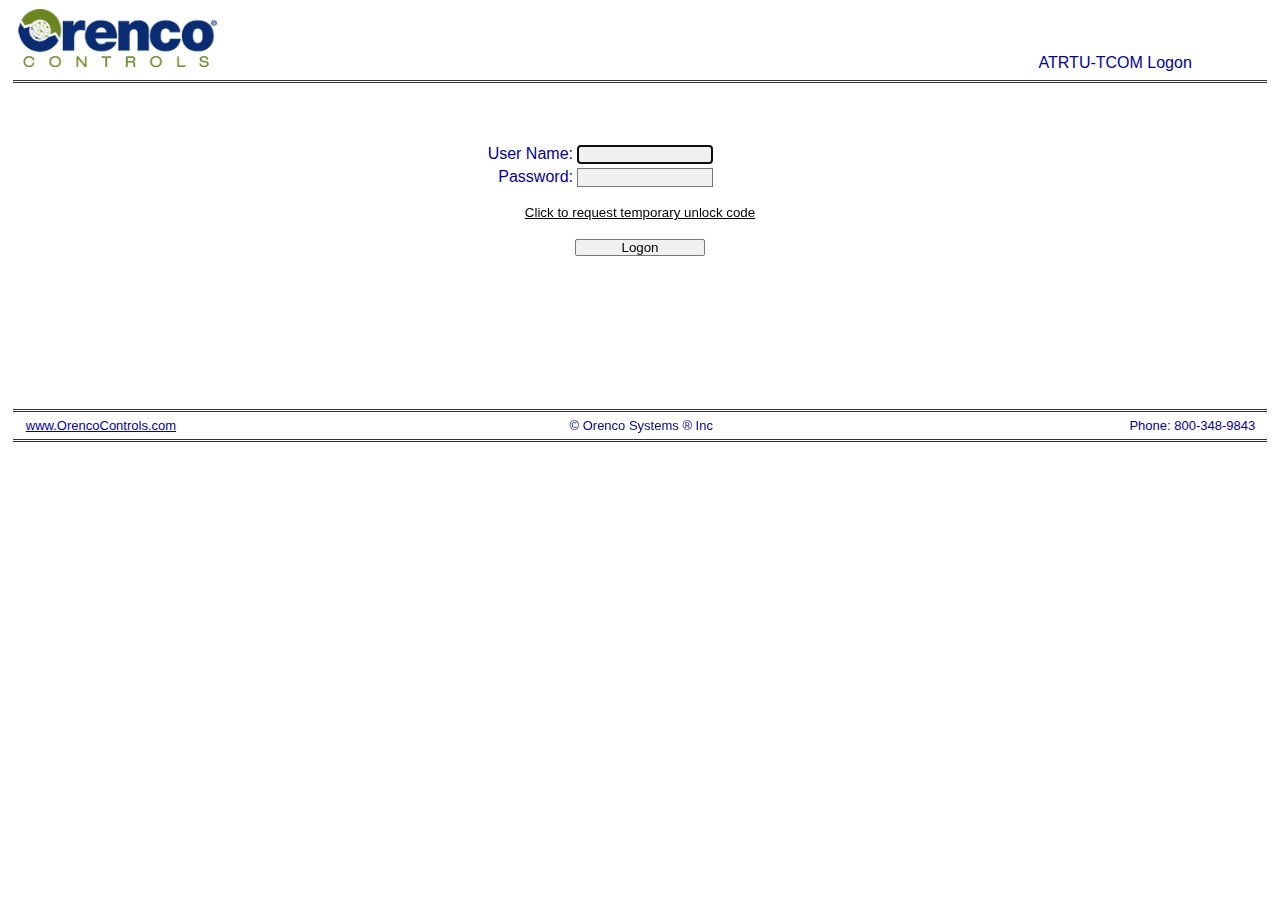
Title: ATRTU-TCOM Logon
What it is for. This is the gate. You land here whenever you open the panel URL or after a session expires. Use it when you need access; leave it alone when you do not. If the account is locked after failed attempts, use Click to request temporary unlock code and follow Orenco / ENVR recovery — do not share unlock codes in this public manual.
| Control | Purpose |
|---|---|
| User Name | Account name (not email) |
| Password | Account password |
| Click to request temporary unlock code | Lockout recovery path (Orenco unlock) |
| Logon | Submit credentials |
Home
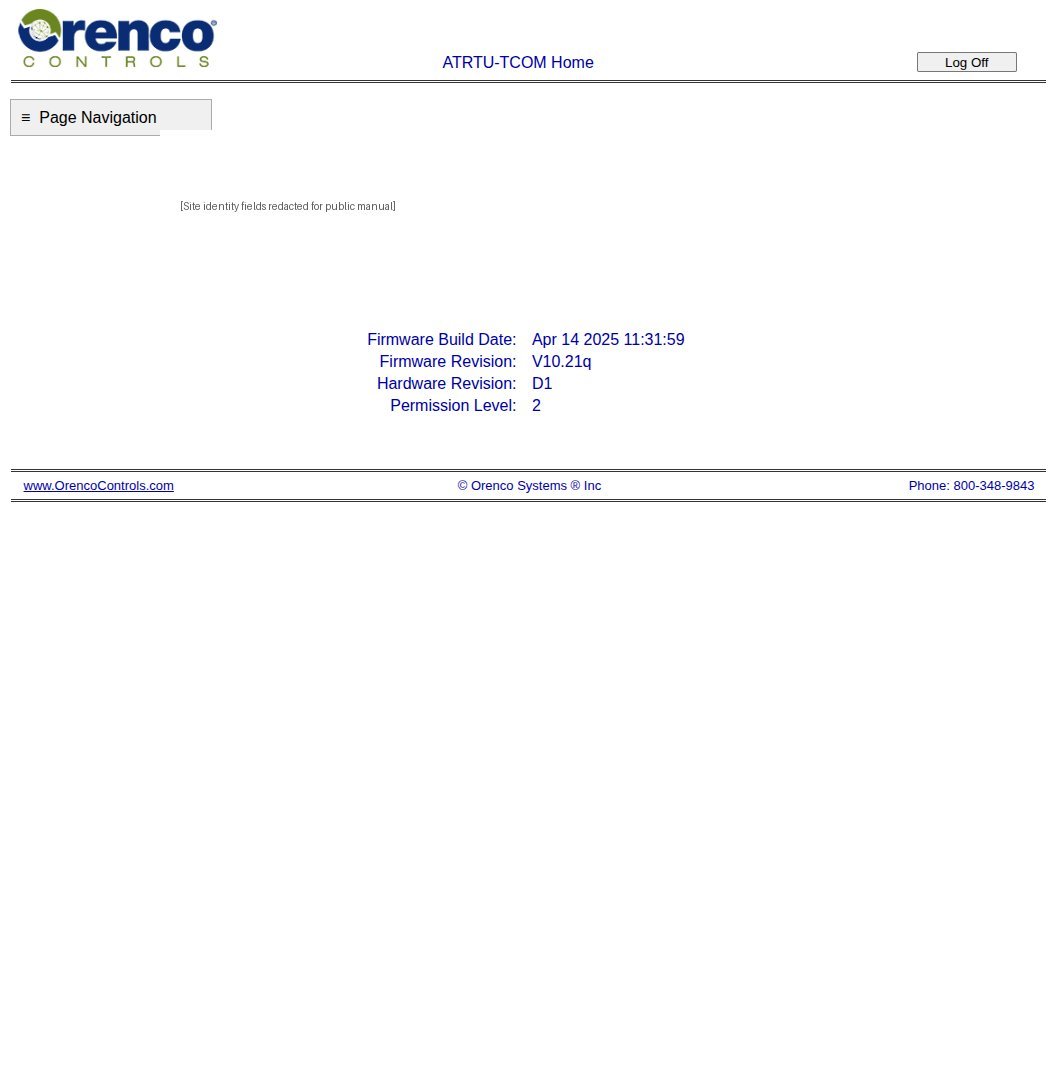
Title: ATRTU-TCOM Home — landing page after login.
What it is for. After Logon you arrive here. Use Home to confirm you are on the right plant, that the controller clock looks sane, and which permission level your account has. If the clock is wrong, logs and daily flow maths will lie — fix it only via Set Date/Time with authority. Log Off when you are done so the next person does not inherit your session.
| Field | Meaning |
|---|---|
| Site name / identifier / quote / custom # | Installation identity (redacted in public screenshots) |
| System date / time | Controller clock |
| Firmware build date / revision | ATRTU-TCOM software version (this plant: V10.21q) |
| Hardware revision | Board revision (this plant: D1) |
| Permission level | Your access level (higher = more override rights) |
| Log Off | End session |
| ≡ Page Navigation | Open the main menu |
Page Navigation
What it is for. Every authenticated page carries ≡ Page Navigation. Think of it as the table of contents for the panel: clock, logs, process points, mailboxes, and Orenco help. You open it whenever you need to jump — for example from a PA1 Status check into Logs after an alarm, or into Point Page Menu to walk the plant from pre-anoxic through discharge.
| Menu item | Opens |
|---|---|
| Home | Home identity / version page |
| Set Date/Time | Controller clock |
| Logs | Alarm / activity / system / user log viewer |
| Point Page Menu ▸ | All process status and settings pages (submenu) |
| Mailbox Configuration ▸ | Alarm notification destinations (ENVR-managed) |
| Operation Overview | Built-in glossary (points, logs, mailboxes) |
| Help and Support | Orenco help links |

Set Date/Time
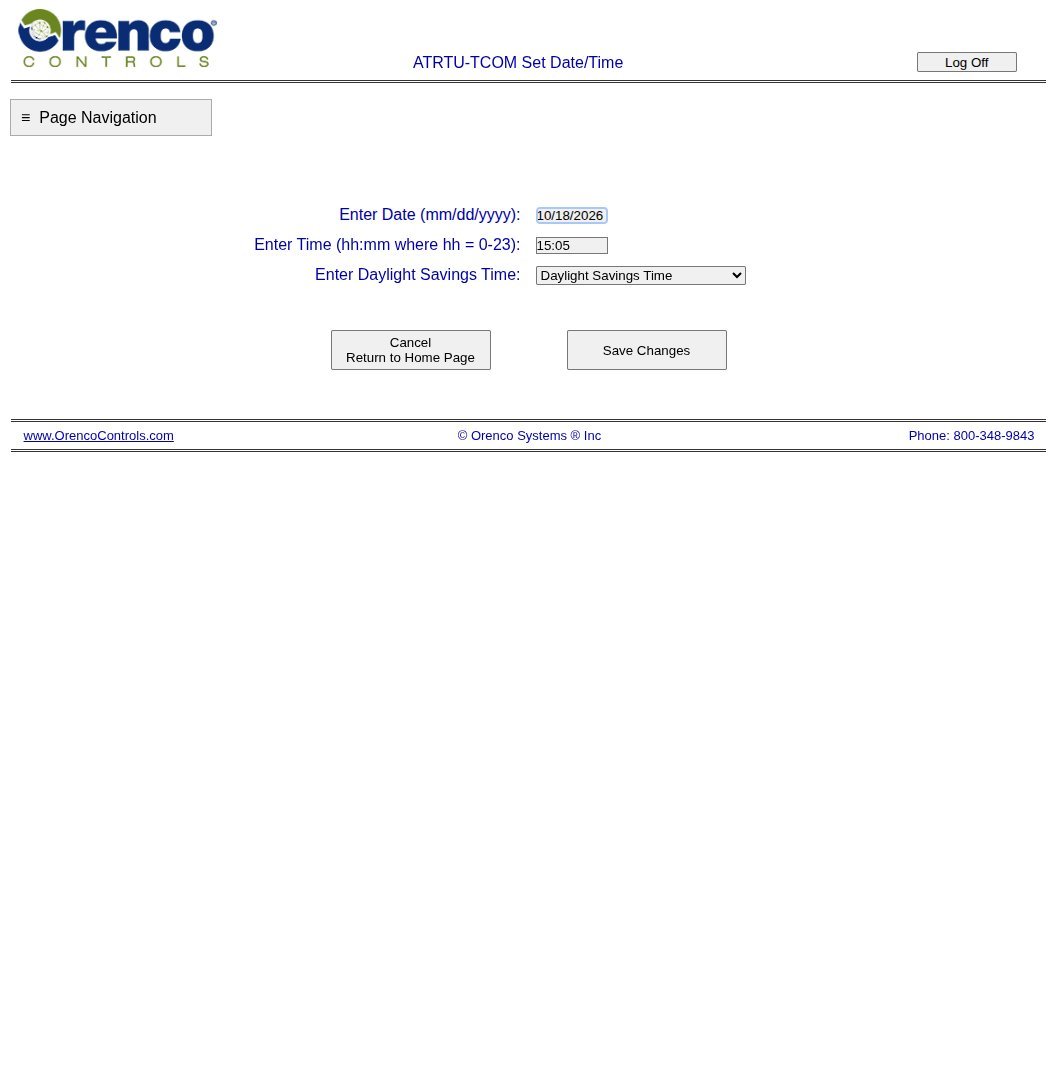
Title: ATRTU-TCOM Set Date/Time (sysconfig.html)
What it is for. Use this after a long power outage, a board swap, or when Home shows a clock that is clearly wrong. The controller stamps every log line and rolls daily flow totals against this clock — a day-shift error makes “yesterday’s flow” meaningless. Enter date (mm/dd/yyyy), 24-hour time, and DST mode, then Save Changes. Estate staff should only change the clock when ENVR asks.
| Control | Purpose |
|---|---|
| Enter Date (mm/dd/yyyy) | Calendar date |
| Enter Time (hh:mm, 0–23) | 24-hour clock (no seconds) |
| Enter Daylight Savings Time | DST mode dropdown |
| Save Changes | Write clock to controller |
| Cancel Return to Home Page | Discard |
Logs
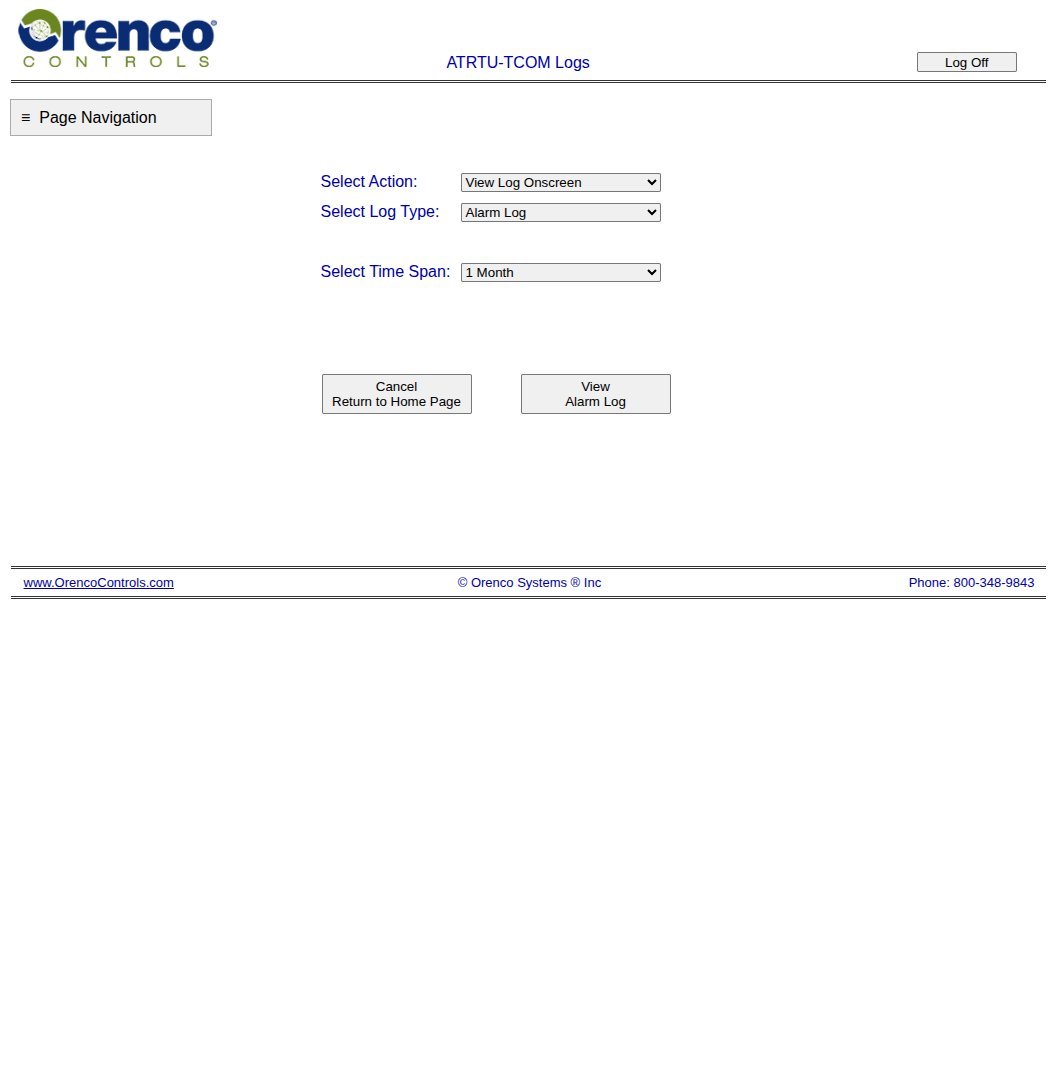
Title: ATRTU-TCOM Logs
What it is for. When something went wrong and Status alone is not enough, open Logs. Pick a log type (Alarm, Activity, System, User) and a time span, then view onscreen. Example: high-level alarm overnight → Alarm Log for the window → User Log for that pump’s daily flow to see whether it ran hard before the trip. ENVR also downloads monthly files for compliance — 3.2.15. User log numbers: 3.2.16 User Logs.
| Control | Purpose |
|---|---|
| Select Action | e.g. View Log Onscreen |
| Select Log Type | Alarm Log, Activity Log, System Log, User Log, … |
| Select Time Span | How far back to load |
| View … Log | Open the selected log |
| Cancel Return to Home Page | Back to Home |
Operation Overview and Help
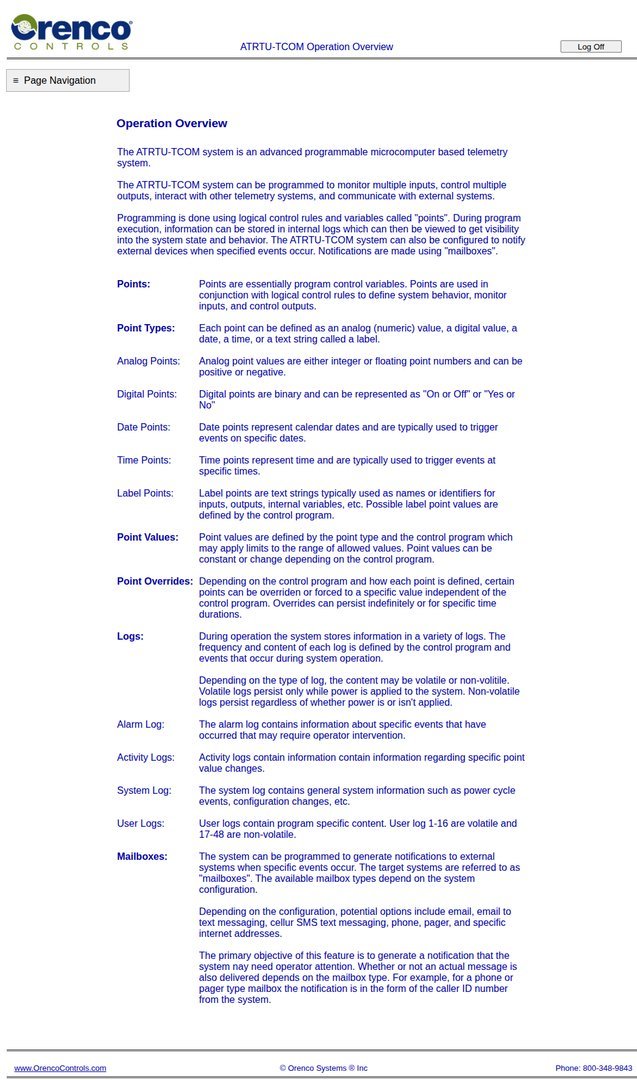
Operation Overview — what it is for. Orenco’s built-in glossary of points, overrides, logs, and mailboxes. Use it when training someone new, or when you need a reminder of what “Automatic / Permanent / Timed” override means before you click an underlined value.
Help and Support — what it is for. Links out to Orenco online help and Viewer resources. Use it when the panel behaviour is unclear and you need manufacturer documentation — not as a substitute for calling ENVR on a live plant alarm.
Point Page Menu — How a Point Page Works
Selecting an item under Point Page Menu opens ATRTU-TCOM Point Page Menu with that process group’s table. Status pages answer “what is the plant doing now?” Adjustable / Settings pages answer “what are the commissioned rules?” FlowData pages answer “how much has moved today / this period?”
| Column | Meaning |
|---|---|
| Point number | Pt# in this panel’s program |
| Point description | Short tag (e.g. PA1 AlarmStatus, RT1 RetRecRatio) |
| Current point value | Live reading or setpoint — underlined = click for override / activity |
| Units | Amps, Min, LPD, O/F, etc. |
| Current override status | Automatic, Permanent, or Timed |
| Time at current / previous value | How long in this state |
| Point type | e.g. L (label/logic), A (analog), D (digital) |
| Control logic | Rule / register driving the value |
Also on every point page:
| Control | Purpose |
|---|---|
| < Previous Page / Next Page > | Step through point pages in order |
| Disable Automatic Page Refresh | Freeze the view while you photograph or note values |
| Refresh Period (8–30 s) | How often values update |
Overrides
Clicking an underlined value opens the override form (Automatic / Permanent / Timed). Prefer ENVR for changes. After Viewer/text edits, return status to Automatic so the HMI can still edit the point — see 3.2.19.
Baseline commissioned values: 3.2.16 Point Pages.
Pre-Anoxic Tank (PA1)
Primary septic / pre-anoxic transfer — duplex pumps that lift effluent toward secondary treatment. Process context: 3.2.11.
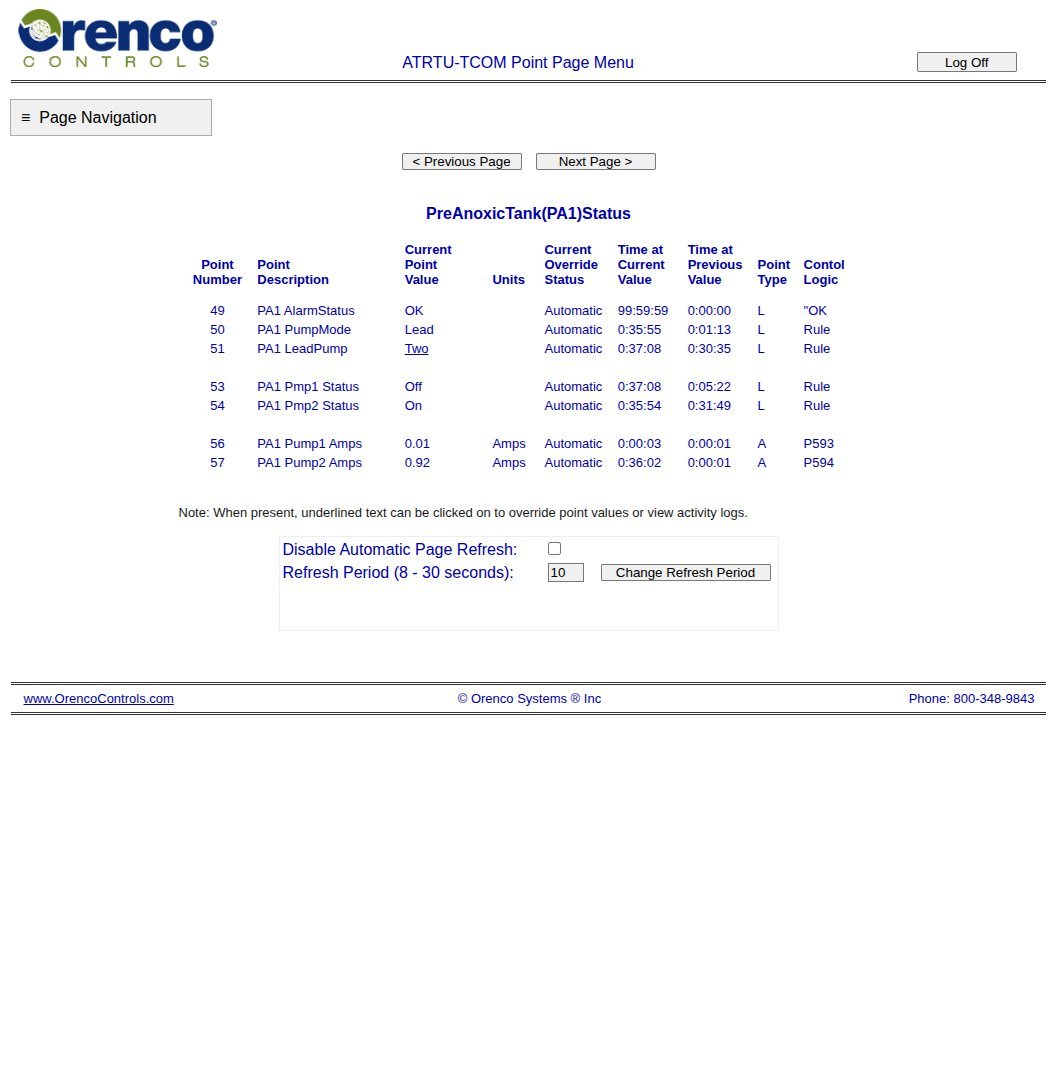
PreAnoxicTank (PA1) Status
Use case. Open this first when a high-level alarm comes in, when someone reports the transfer pumps “not alternating,” or as part of a quick plant health check. You are asking: is either pump in alarm, which is lead, is a pump running right now, and are amps in a normal band? Note the values and call ENVR if an alarm is active or amps look stuck high/low — do not change amp windows yourself.
PA1 Adjustable Settings
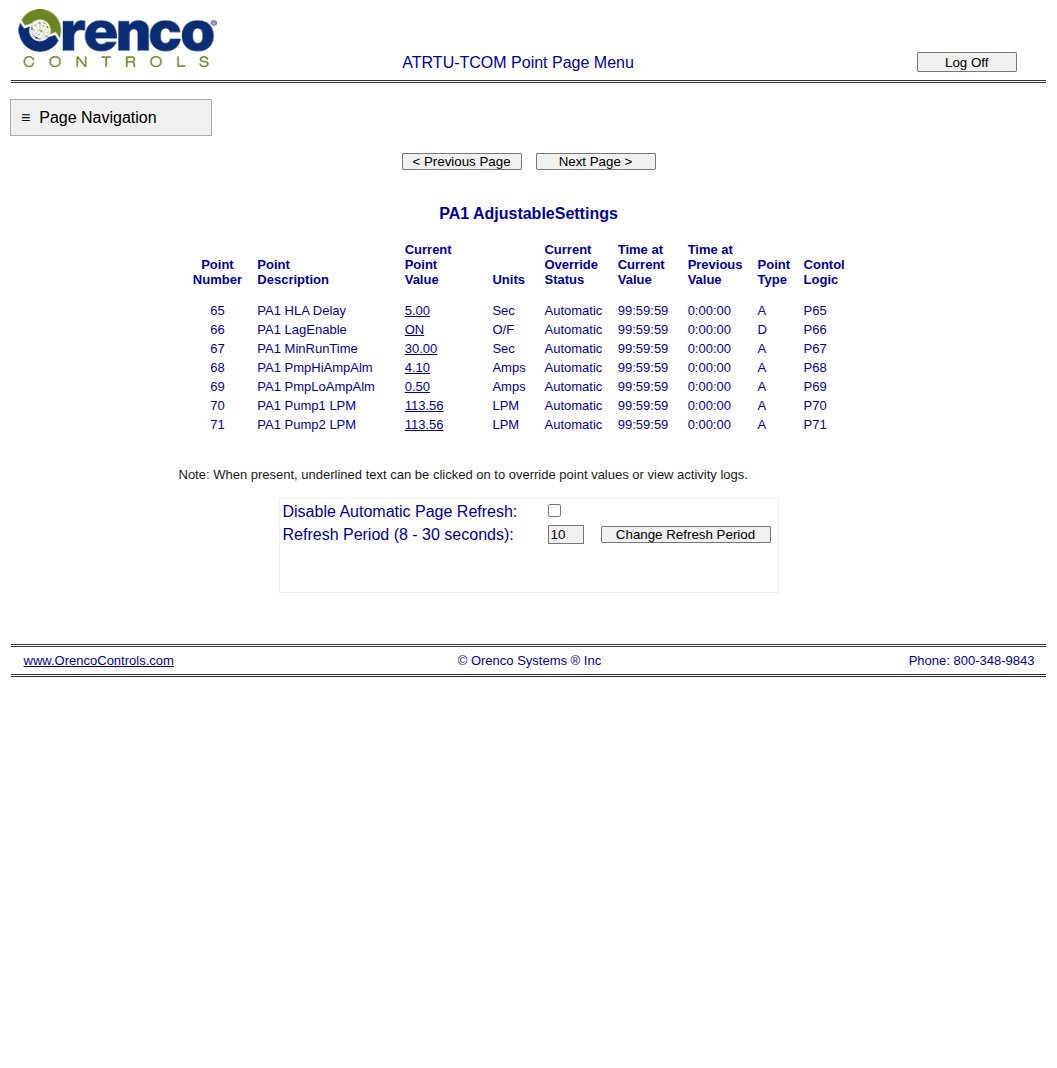
Use case. Use this when ENVR or Orenco is tuning the duplex logic — high-level delay, lag enable, minimum run time, amp alarm windows, and per-pump LPM. Estate staff open it only to read the commissioned values against 3.2.16 Page e after a suspected change, not to experiment. Short minimum run or wrong LPM will short-cycle or mis-totalise flow.
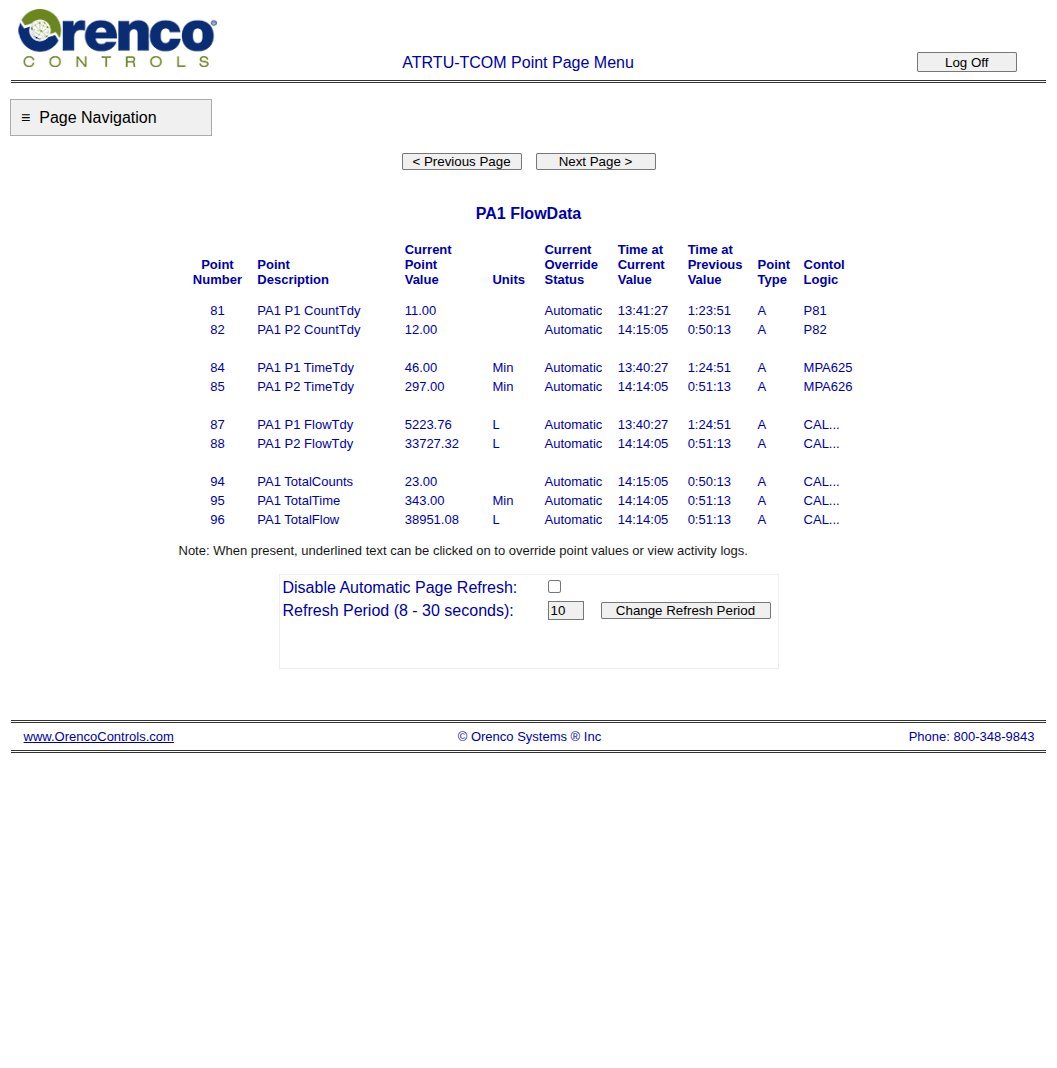
PA1 Flow Data
Use case. After a busy weekend, a septic complaint, or before a compliance download, open FlowData to see how much the PA1 pumps moved today and over the selected period. Pair it with Status: high daily volume with normal amps is load; high amps with little volume is a hydraulic or mechanical problem.
Recirc Tank (RT1)
AdvanTex recirculation — four pumps and the timer that sets treatment intensity. Process context: 3.2.12.
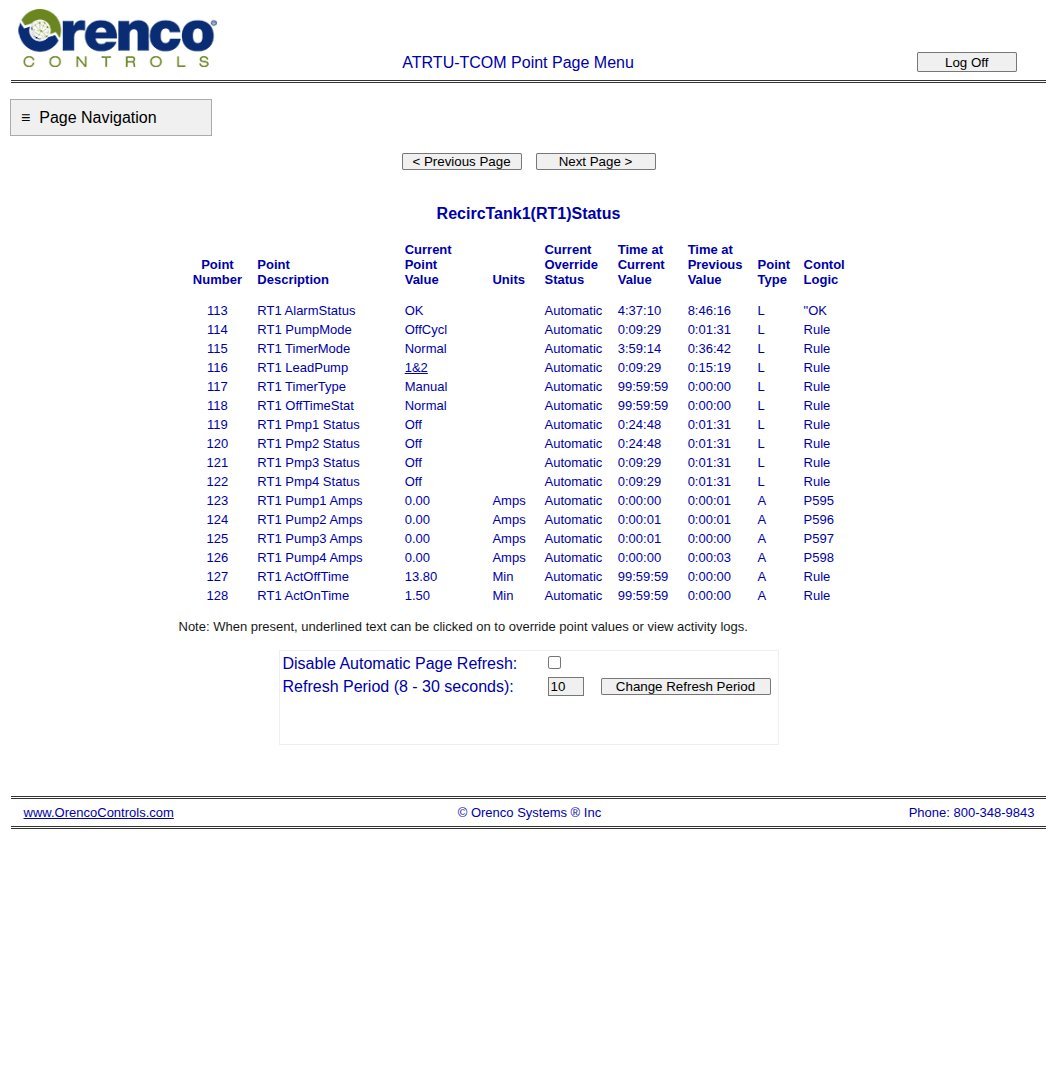
RecircTank1 (RT1) Status
Use case. This is the “is recirc alive?” page. After an overnight alarm, a smell complaint, or weekly monitoring, confirm alarm status, which timer mode is active (Estimated / Trend / Manual), and whether pumps are cycling. If the plant is stuck in Manual after a trial, report it — leaving Manual Time Set on overrides the auto/trend maths.
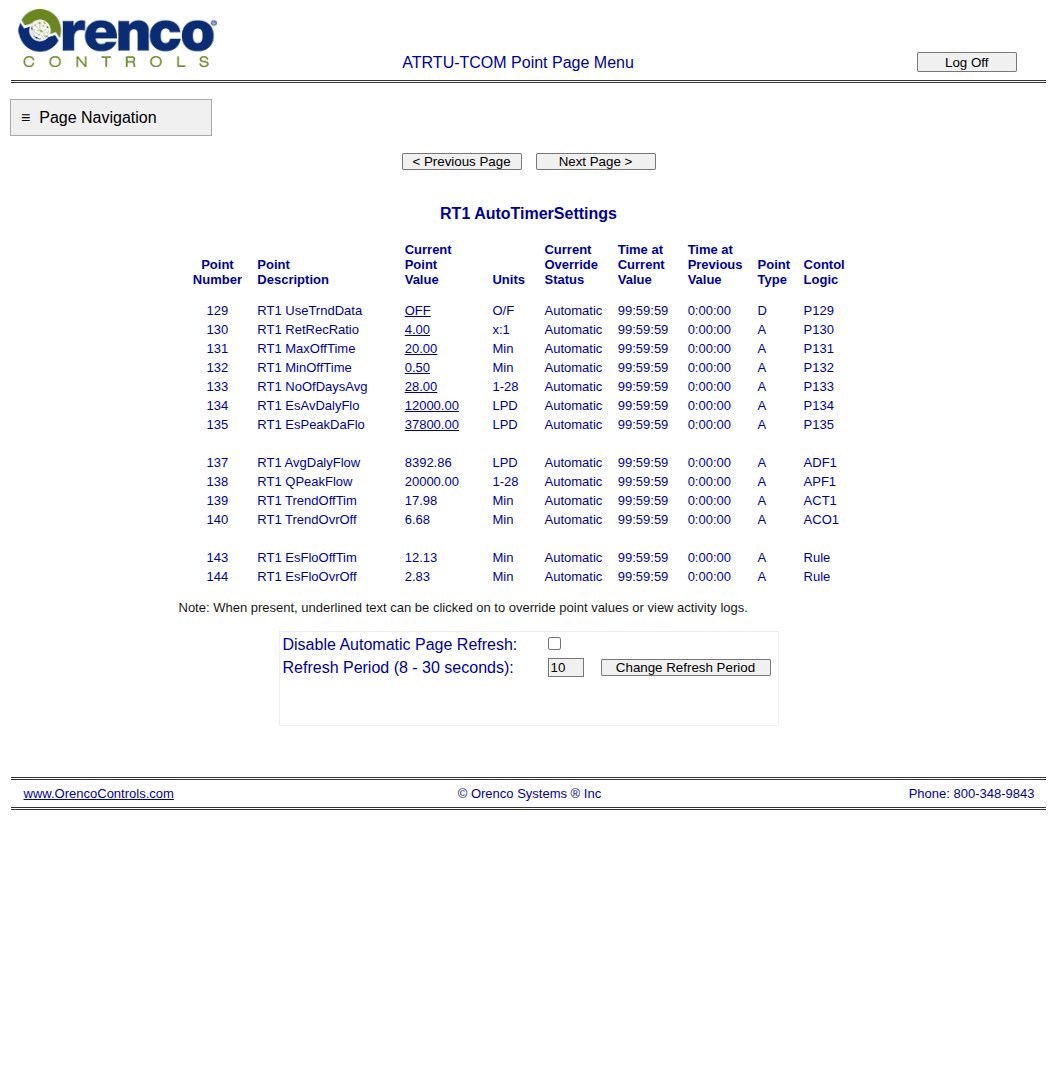
RT1 Auto Timer Settings
Use case. This is where treatment intensity is defined for normal operation: Ret Recirc Ratio (this plant 4:1), whether Trend or Estimated Flow drives the timer, off-time clamps, and design average/peak LPD. Open it when ENVR is reviewing load growth or when Status shows unexpected idle times. Changing ratio or LPD without authority can under-treat or over-pump the AX beds.
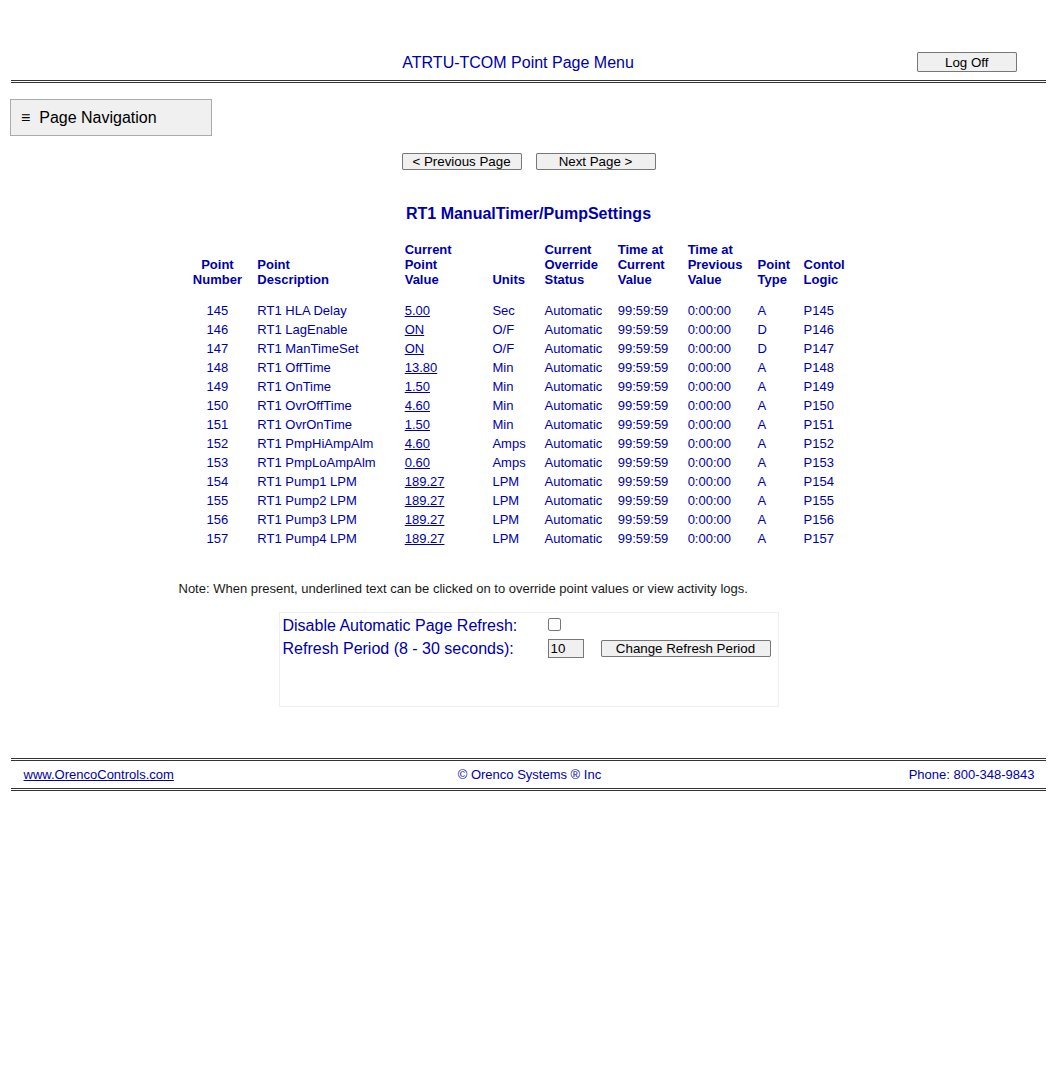
RT1 Manual Timer / Pump Settings
Use case. Used when someone intentionally forces Manual Time Set (special cases only). Also holds the four pump LPM calibrations and amp windows. If Status says Manual and nobody authorised it, check Manual Time Set here — it should be Off for day-to-day running. Baselines: 3.2.16 Page j.
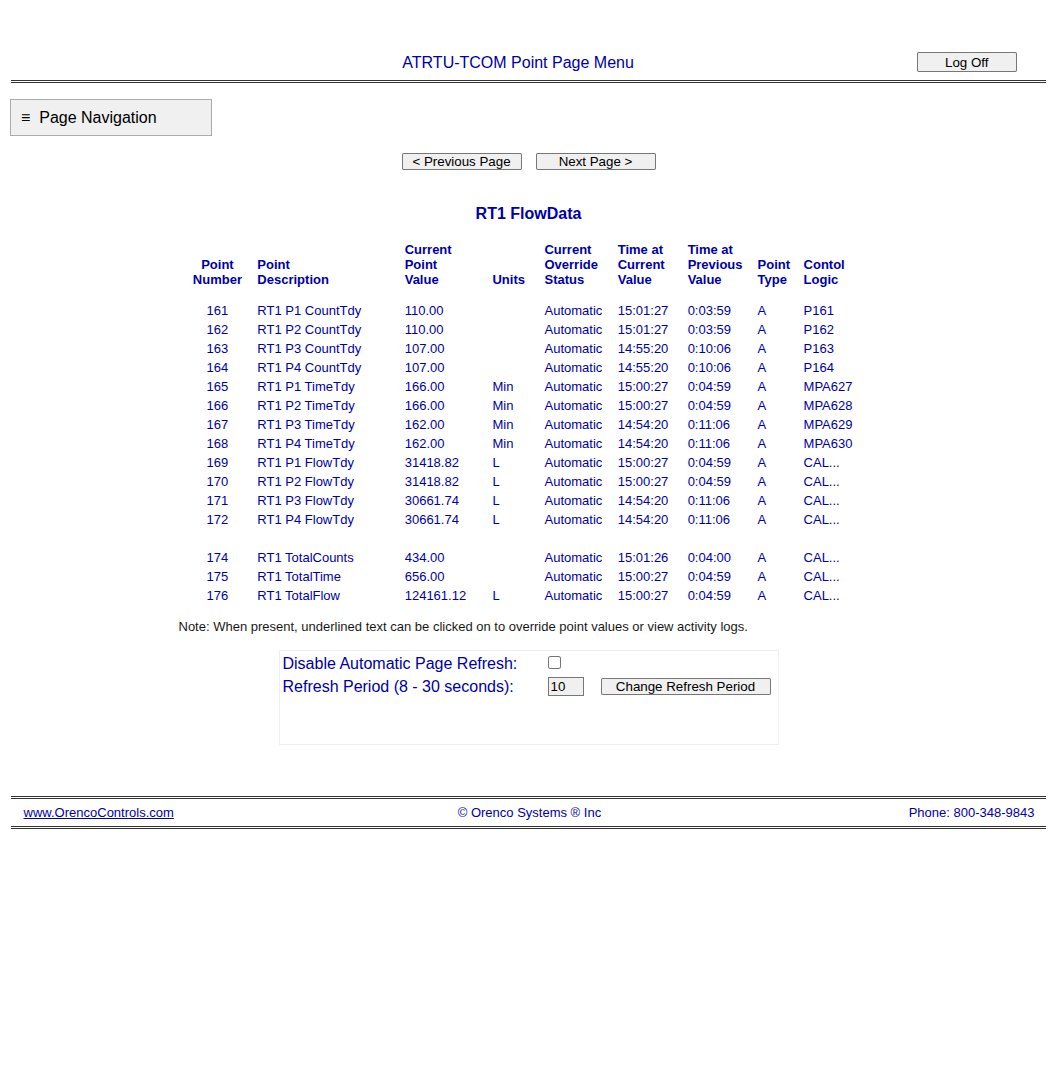
RT1 Flow Data
Use case. Compare recirc pump volume against PA1 and FM1 after a high-flow event or when Trend data looks wrong. Uneven pump totals can point to a single pump not contributing — useful before a service visit.
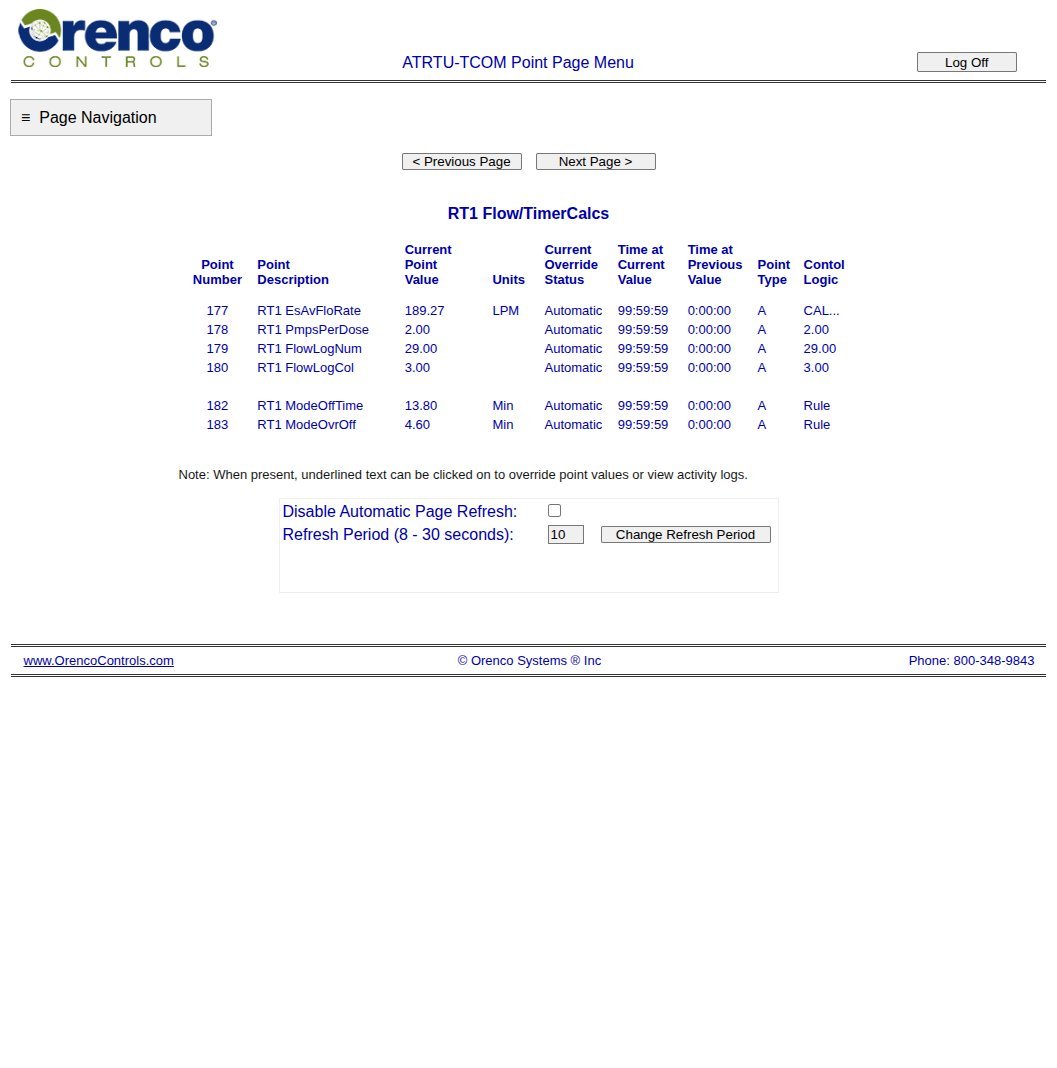
RT1 Flow / Timer Calcs
Use case. Shows the controller’s calculated off times and flow maths that sit behind Auto Timer. Use it with ENVR when diagnosing “why is the off time stuck at the max clamp?” — not as a casual browse. Wrong estimated LPD on AutoTimerSettings will show up here as odd calculated intervals.
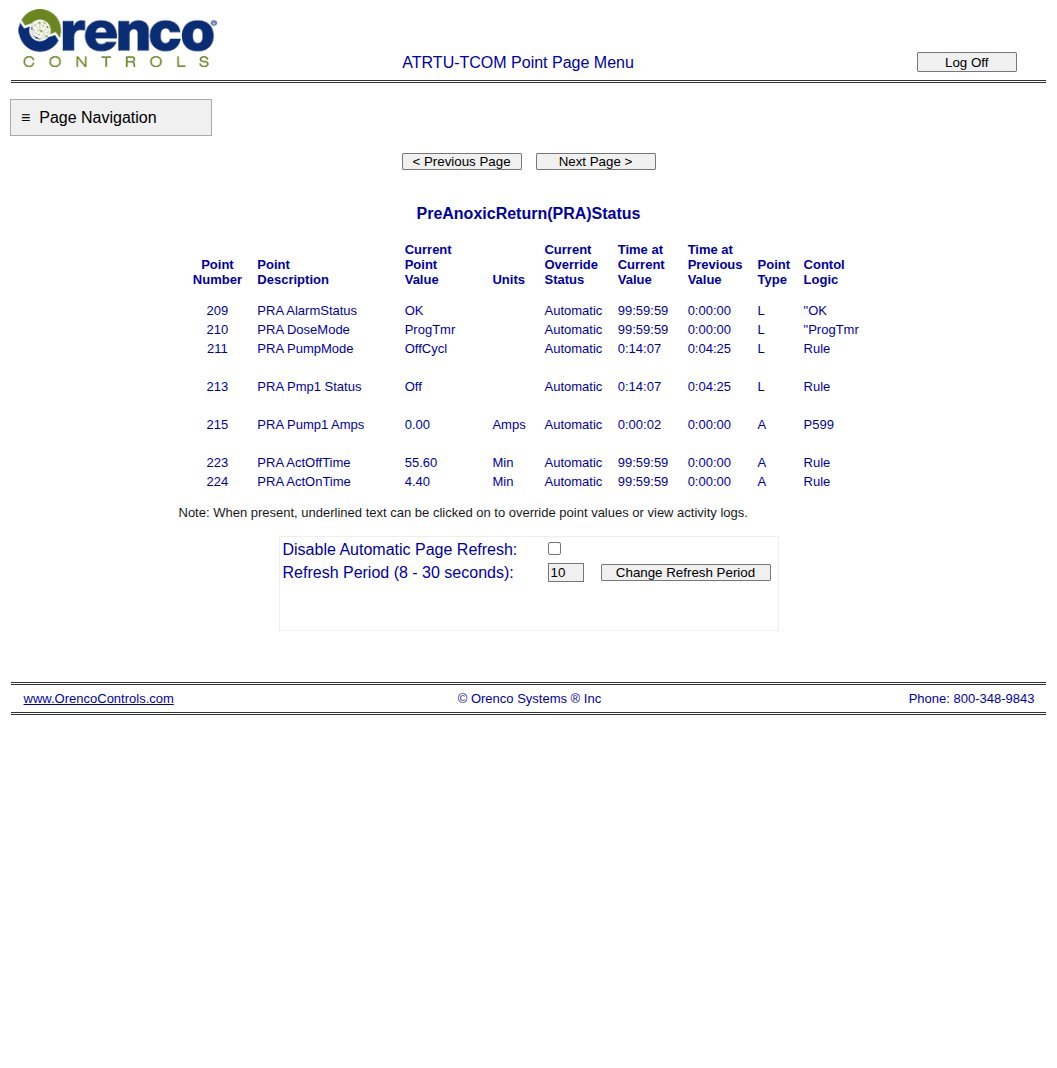
Pre-Anoxic Return (PRA)
Filtrate return from secondary treatment back toward the pre-anoxic tank.
PreAnoxicReturn (PRA) Status
Use case. Check this when return flow seems absent, when nitrogen performance is under review, or after work on the return pump. Confirm the pump is enabled and cycling rather than locked Off. Pair with Settings if the on/off times look wrong against baseline.
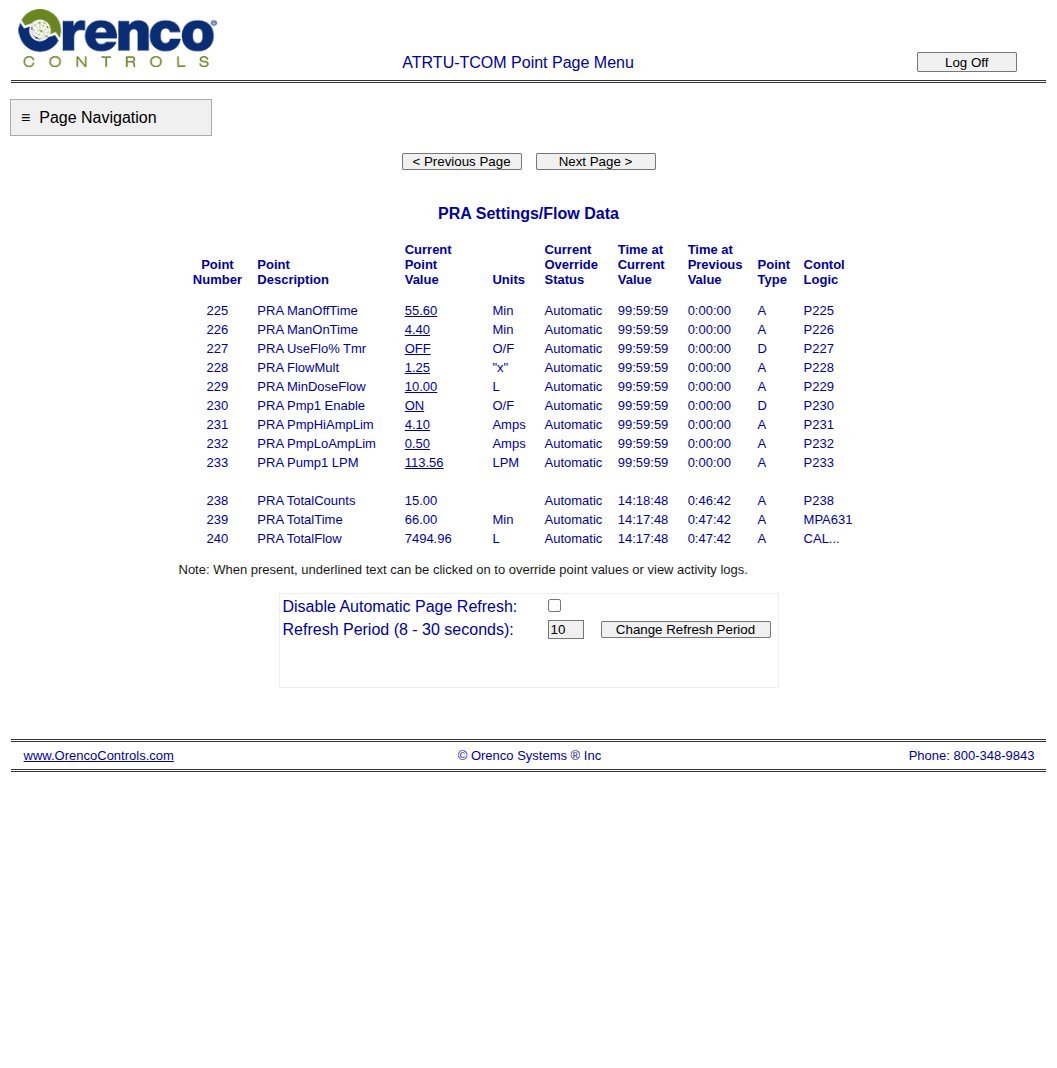
PRA Settings / Flow Data
Use case. Holds manual on/off times, flow-paced options, pump enable, amp alarms, and LPM, plus flow totals. Open it when ENVR is retuning return dose after a process change, or when you need to confirm Pump 1 Enable is still On after maintenance. Baselines: 3.2.16 Page o.
Discharge Tank (DT1)
Dose / discharge toward land application / recycled water storage. Process context: 3.2.12 · 3.2.14.
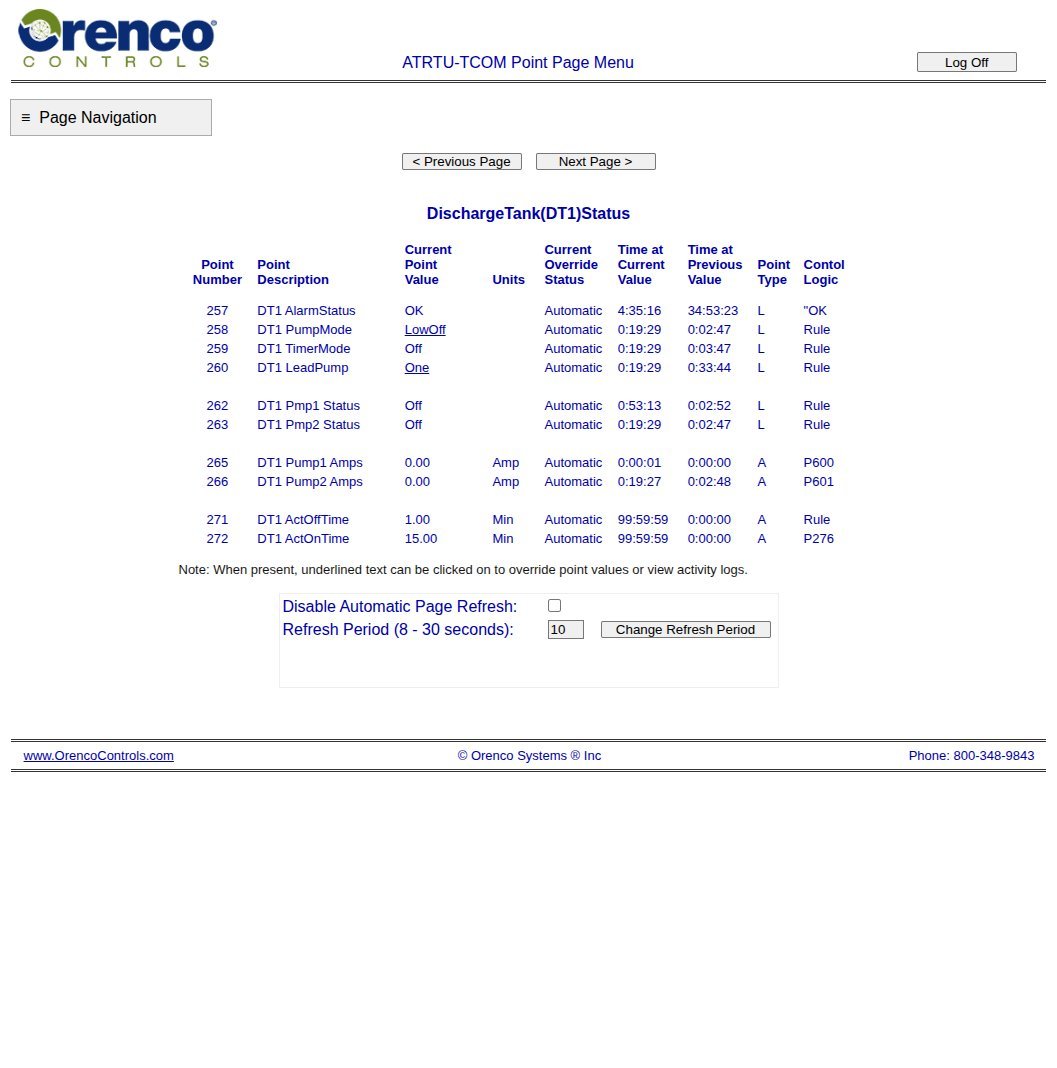
DischargeTank (DT1) Status
Use case. First stop when irrigation is not happening, tanks are high, or a discharge pump alarm pages. Confirm which pump is called, alarm state, and amps. If HOAs in the control room were left Off, Status may show no run even though timers look correct — check 3.2.19 AOH switches on site.
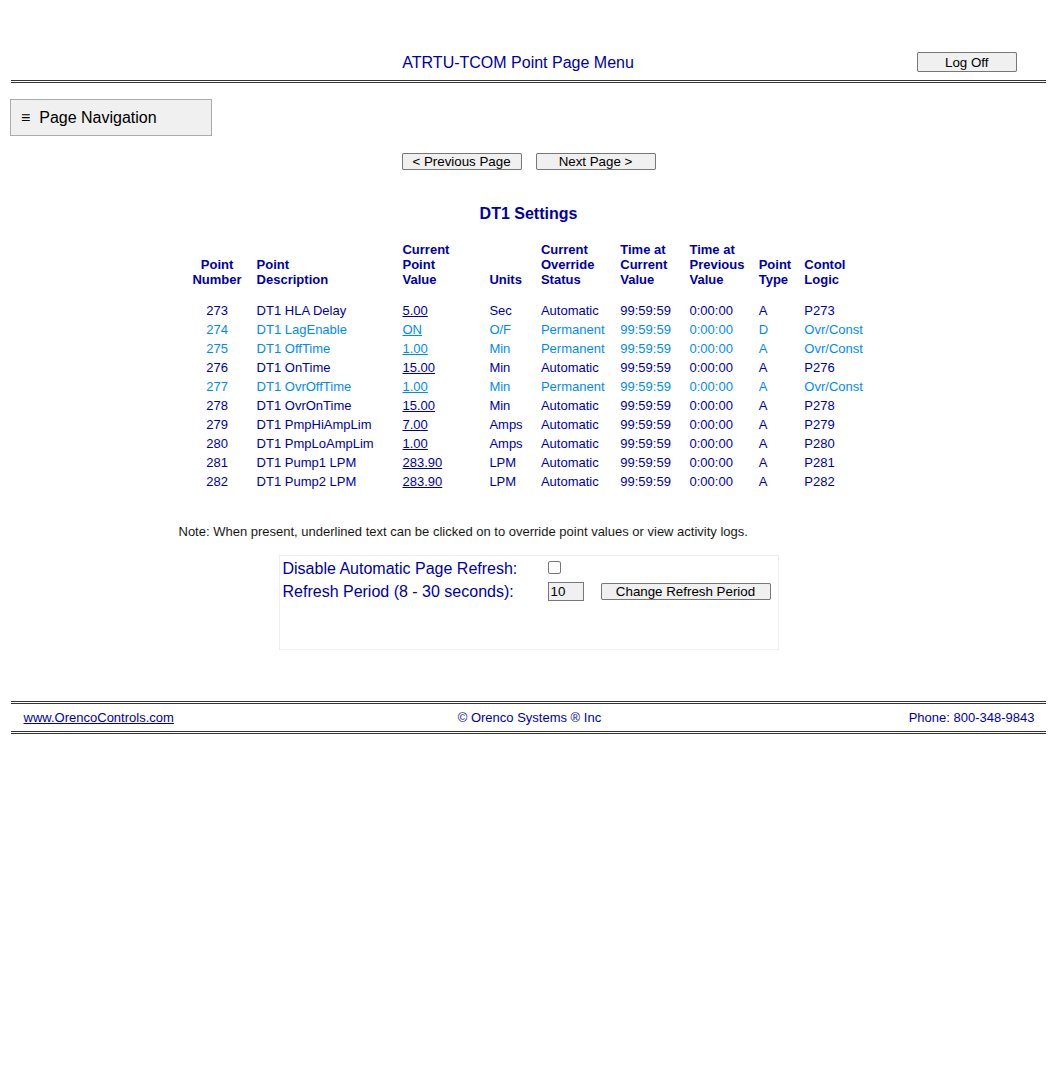
DT1 Settings
Use case. Discharge timing (off/on and override times), amp windows, and LPM for the two discharge pumps. Used when ENVR adjusts irrigation dose windows or after a pump replacement needs LPM recalibration. Estate staff: read only unless directed. Baselines: 3.2.16 Page r.
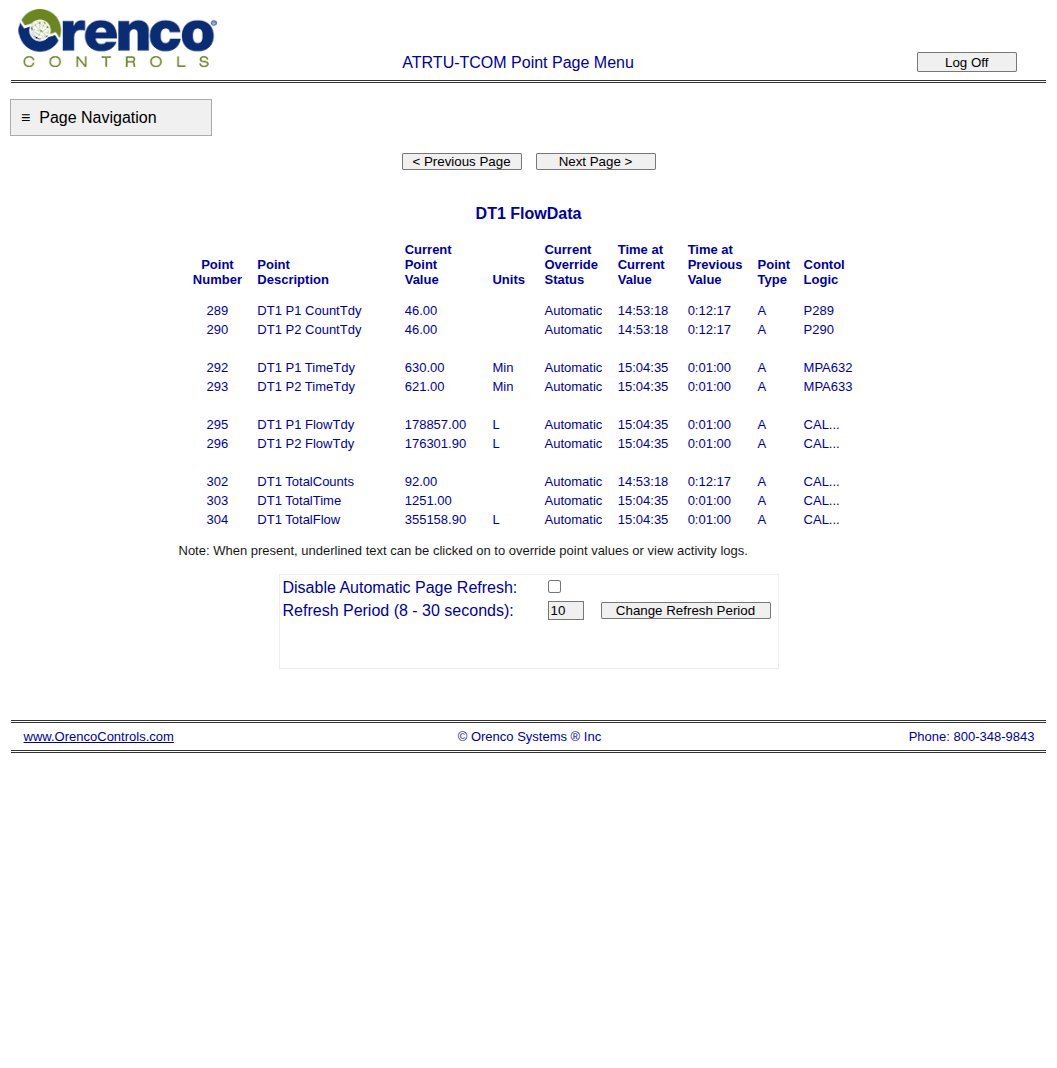
DT1 Flow Data
Use case. How much left the dose tank toward the LAA / RWS. Use after wet-weather restrictions ease, after a high-level DT1 alarm, or when comparing plant output to FM1 daily totals for the month.
Liquid Chem Feed — Alkalinity (LCA)
Mixer and peri pump that dose alkalinity into the process.
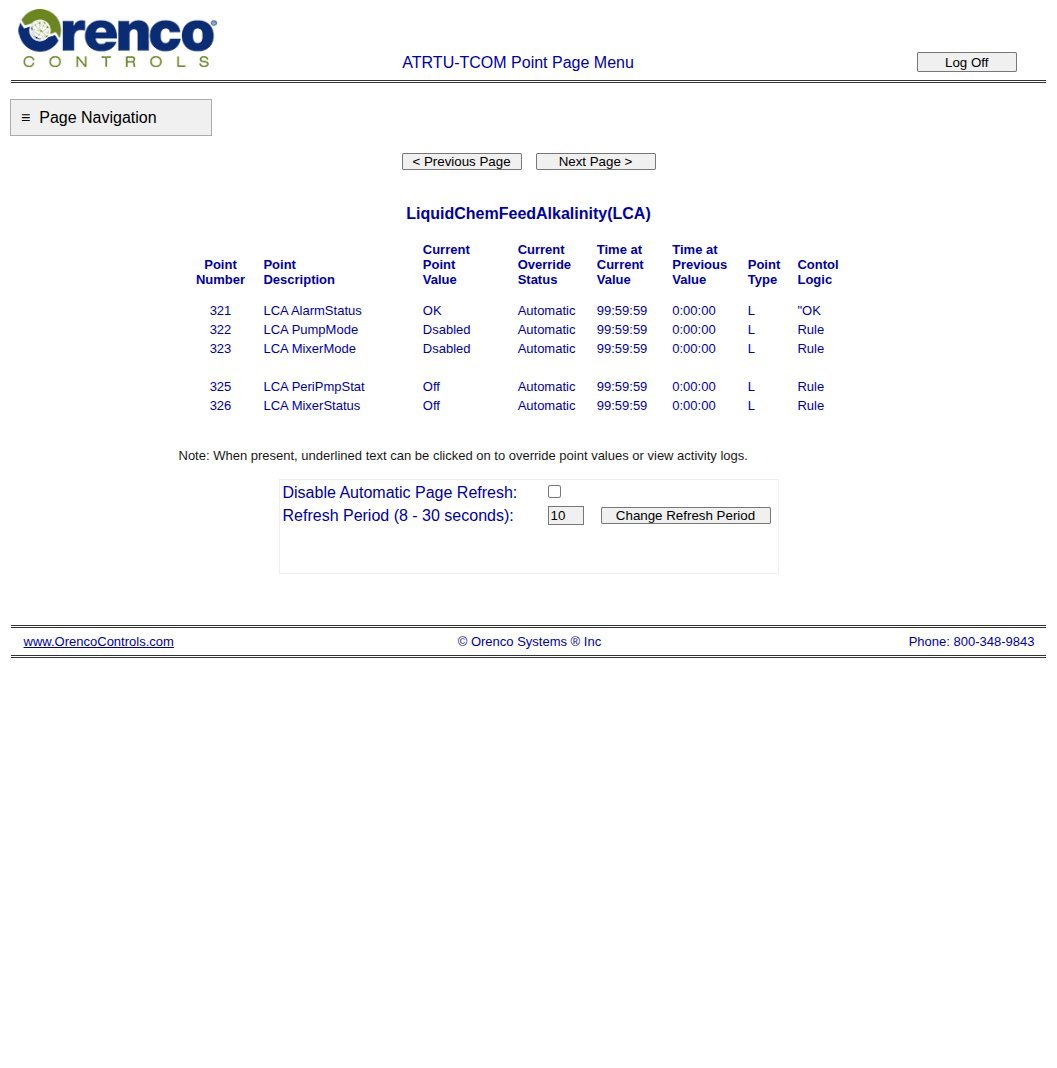
LiquidChemFeedAlkalinity (LCA)
Use case. Open when chem feed is suspected off, after a tote change, or when lab results suggest alkalinity issues. Confirm mixer / peri status and that the feed is not disabled. A silent Off for days is a process risk even if pumps elsewhere look fine.
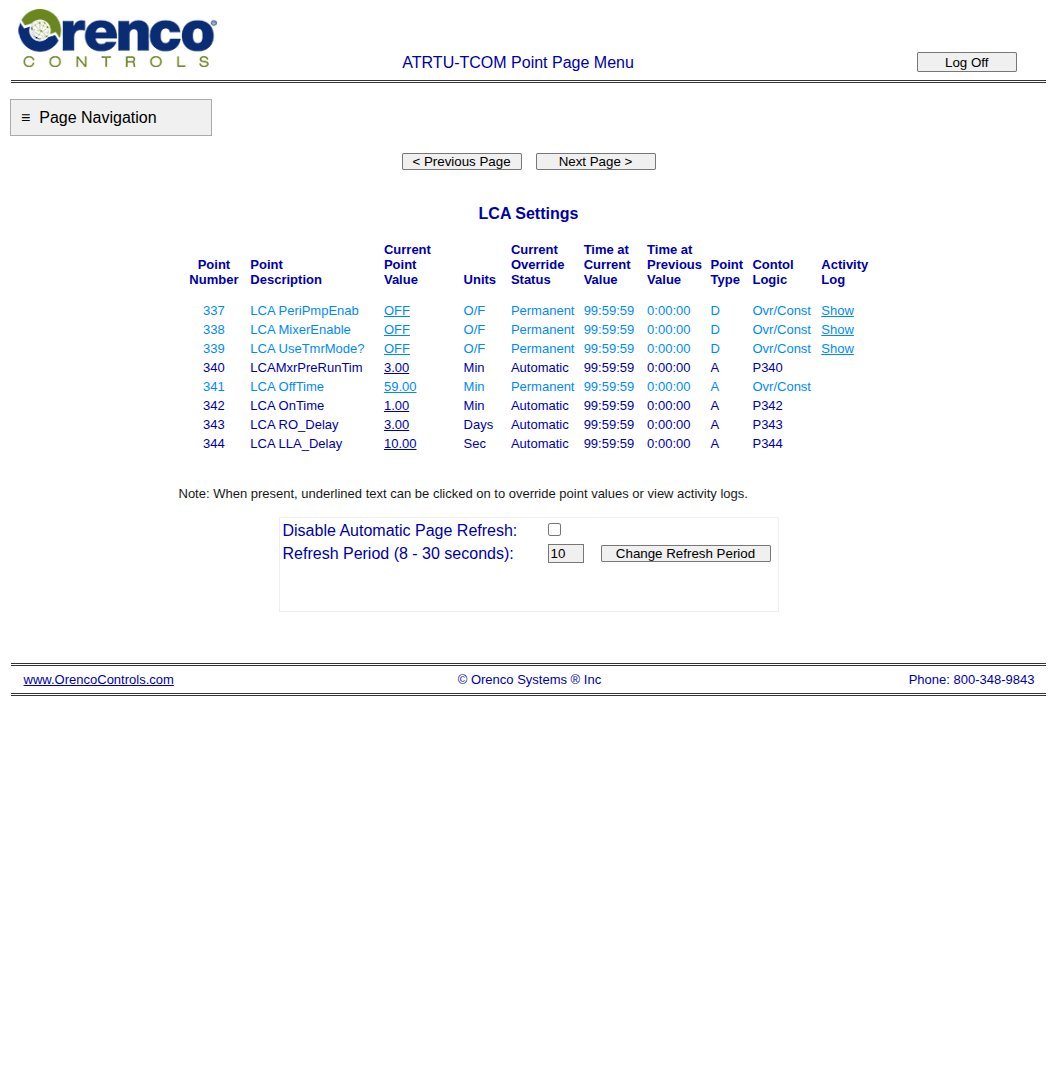
LCA Settings
Use case. Peri / mixer enables, timer vs flow-pace mode, mixer pre-run, on/off cycle, and float delays. Use with ENVR when commissioning a new tote or changing dose strategy. Leaving Peri Enable Off after maintenance is a common miss — check here. Baselines: 3.2.16 Page v.
Flowmeter, High-Flow Alarm, UV, Fan, Alarms
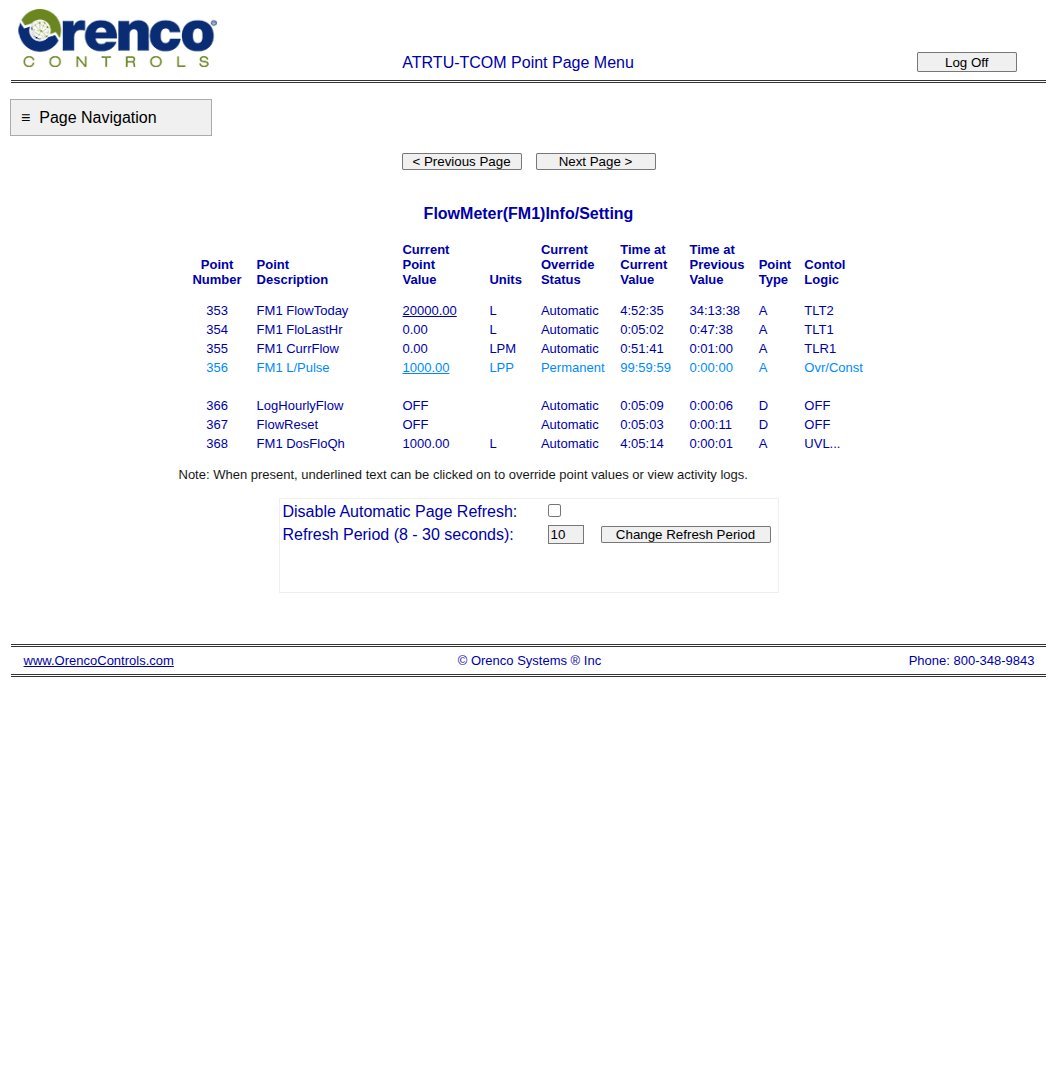
FlowMeter (FM1) Info/Setting
Use case. The pulse meter that turns clicks into litres for daily totals and high-flow logic. Open it when totals look wrong after a meter service, or when comparing FM1 daily volume to PA1/DT1 FlowData. Liters per Pulse (baseline 10.00 LPP) must match the physical meter — wrong LPP silently corrupts every flow figure downstream.
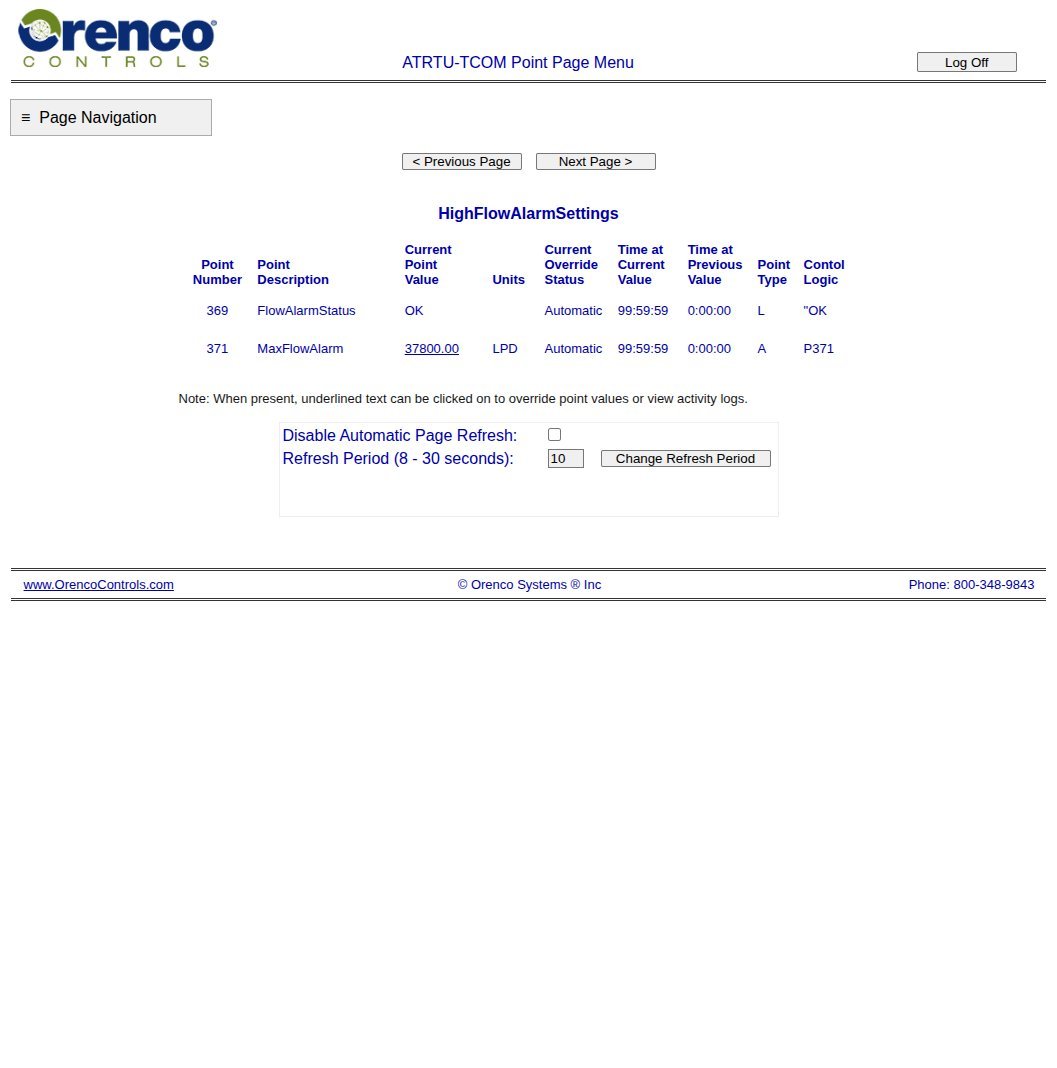
High Flow Alarm Settings
Use case. Sets the Maximum Flow Alarm (baseline 37,800 L). Use when investigating a high-flow page, or when ENVR revises the alarm after a design-flow change. If the alarm trips but the estate was not unusually busy, check FM1 calibration and clock before assuming a real hydraulic event.
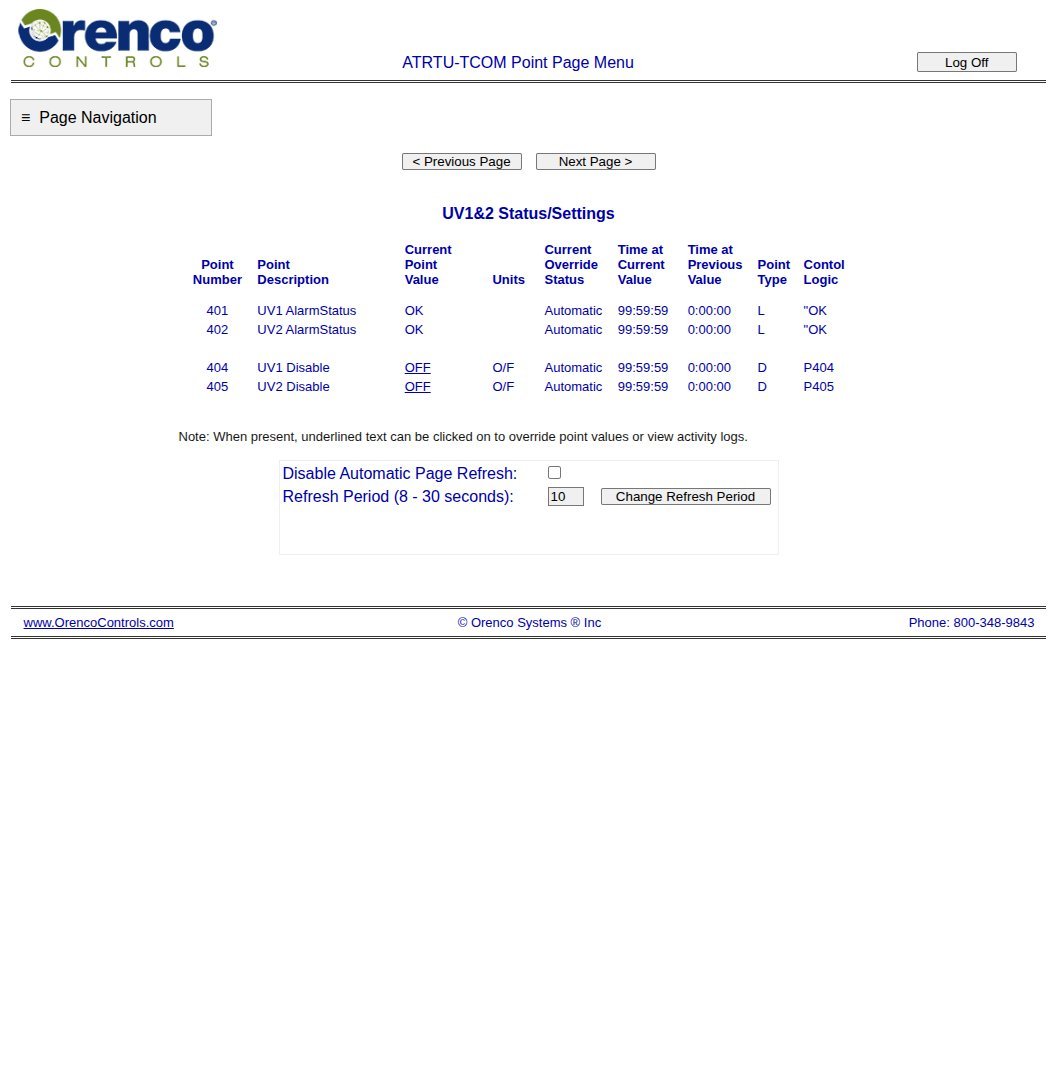
UV1 & 2 Status/Settings
Use case. Disinfection train — two UV units that can be independently disabled. Check after a UV fault page, lamp replacement, or when recycled-water quality is under scrutiny. A UV fault does not stop the pumps on this design — treatment can continue without disinfection if UV is offline, so treat a Disable = On or persistent fault as urgent for ENVR / process owner. Context: 3.2.13.
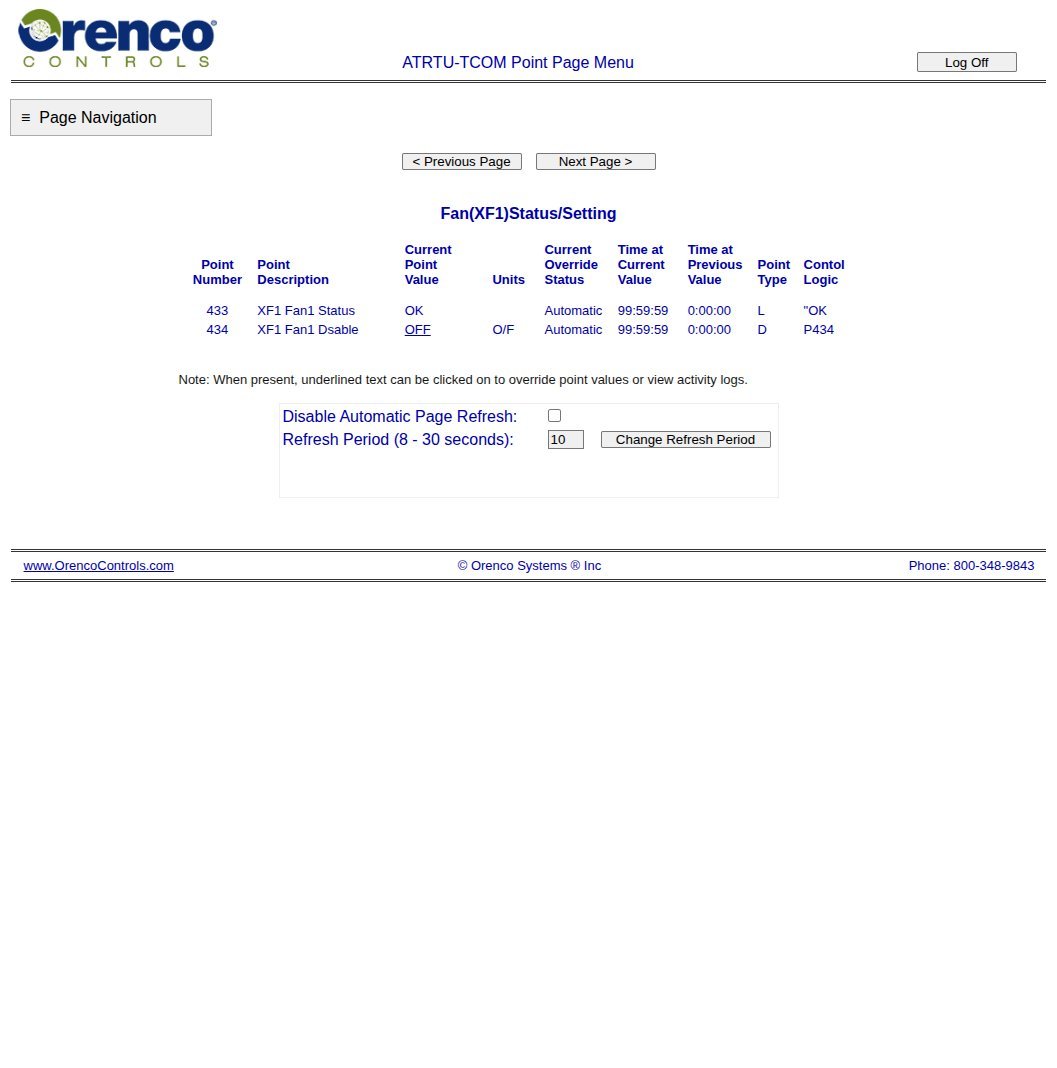
Fan (XF1) Status/Setting
Use case. AX bed ventilation fan. Open when odour increases, after a current-fault alarm, or when someone reports the fan not running. Confirm the fan is not Disabled and note any fault before a site visit. Context: 3.2.12.
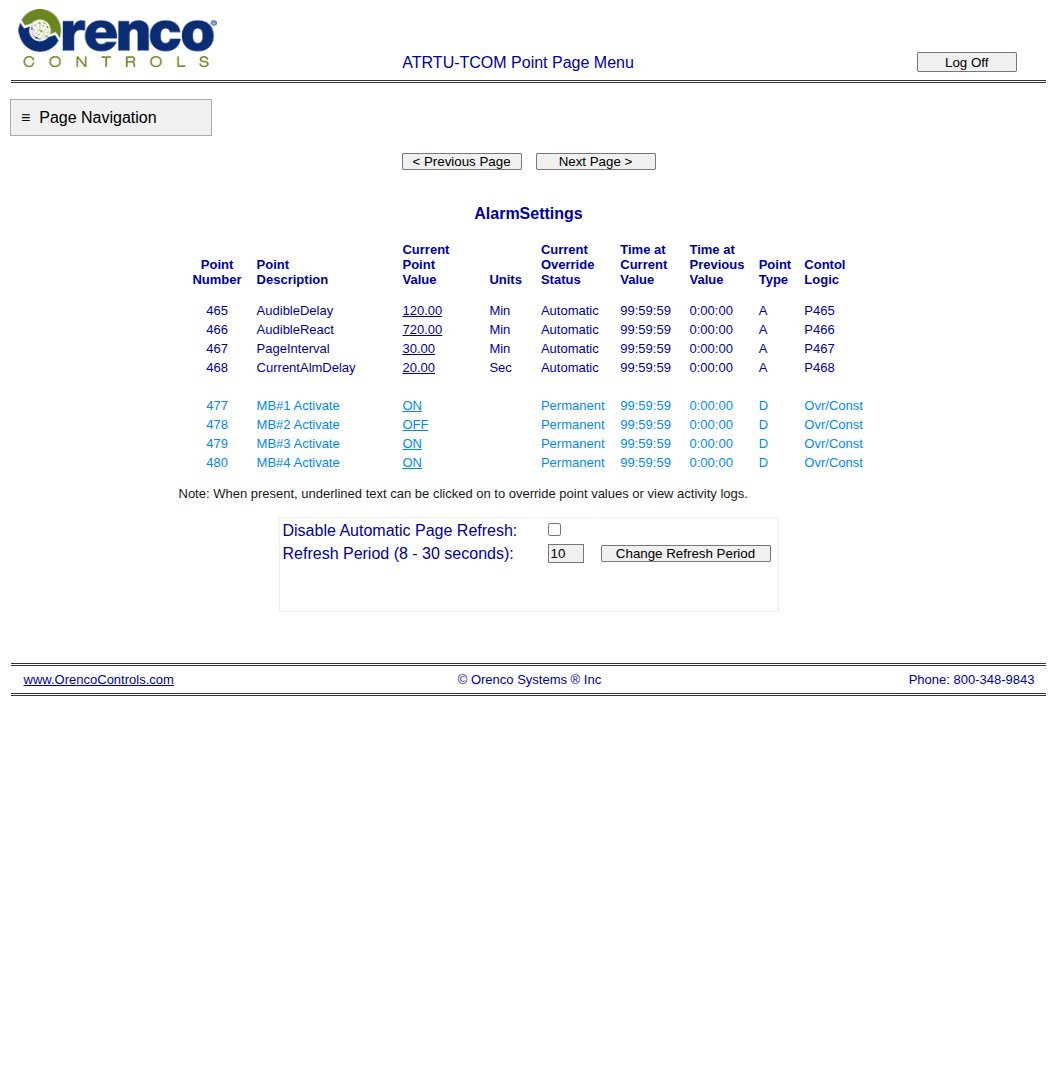
Alarm Settings
Use case. Horn activate / reactivate delays, remote page interval, and current-sensor debounce. Explains why you can have an active point alarm without an immediate horn — this plant’s audible delay baseline is 120 min. Change only with ENVR; wrong page interval means missed or spammed notifications.
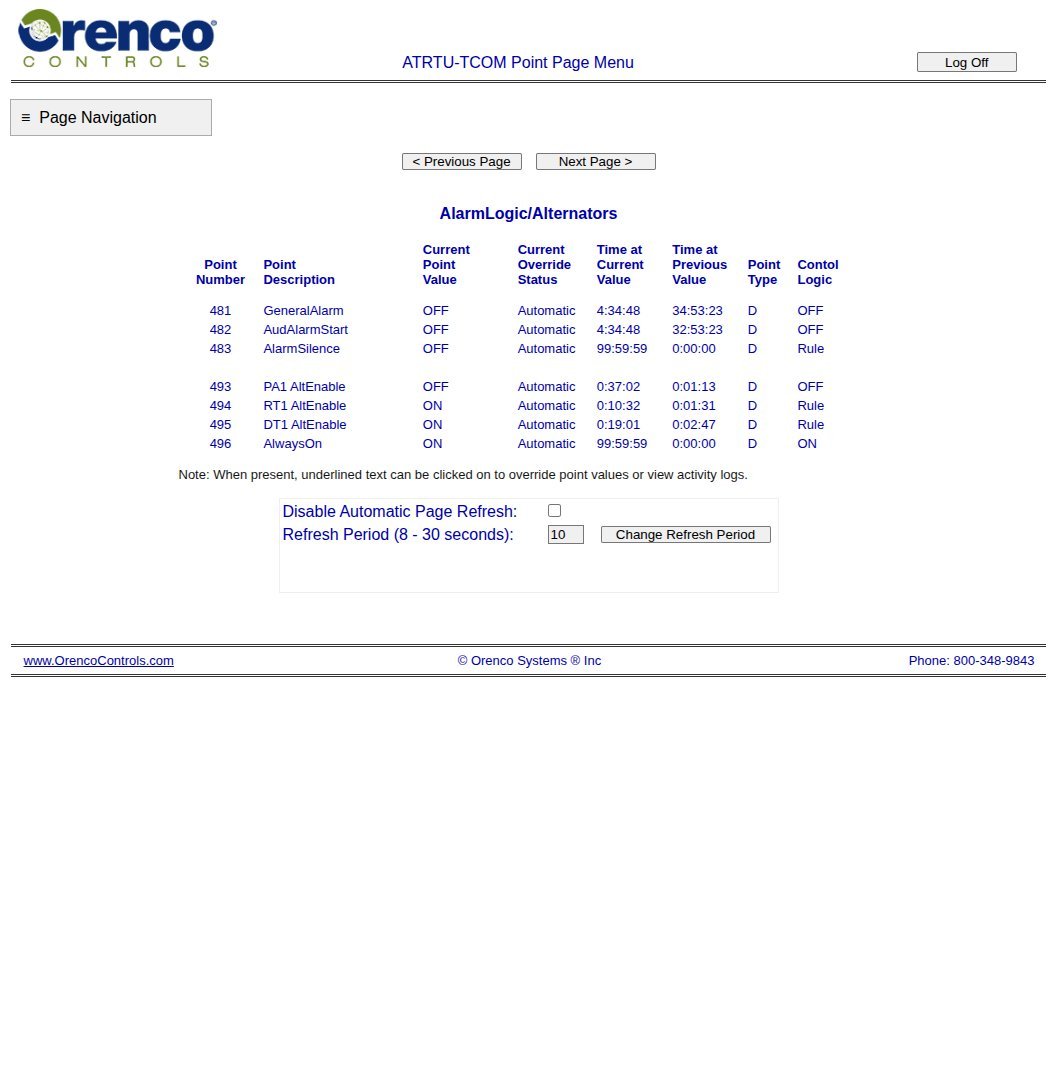
Alarm Logic / Alternators
Use case. Shows how alarm logic and pump alternators are currently evaluating. Use with ENVR when lead/lag behaviour looks stuck on one pump, or when diagnosing why an alarm did or did not escalate. Day-to-day caretakers usually stay on Status pages; this page is for deeper troubleshooting.
Alarm Codes / 1–3
Use case. Reference pages that decode alarm codes. Open them when a log or Status line shows a code you do not recognise — match the code, then return to the relevant Status page or call ENVR with code + timestamp.
Mailbox Configuration
What it is for. Lists who receives alarm pages (email / SMS). Use it only when ENVR is adding or removing a recipient after a staff change. Wrong addresses mean the next high-level alarm goes nowhere useful. Destination addresses are not reproduced in this public page.
Version Control
| Version | Date | Description |
|---|---|---|
| 1.0 | 2026-10-18 | Split from 3.2.16 |
| 2.0 | 2026-10-18 | Live Lake Bennett web screenshots and page catalogue |
| 3.0 | 2026-10-18 | Operator use cases for each web page |
| 3.1 | 2026-10-20 | Style guide compliance — Title Case headings; removed body dividers |
Next Review Date: 2027-04-20
Related Documents
- 3.2.16 T-COM Control Interface (overview & Pt# baselines)
- 3.2.18 T-COM Viewer
- 3.2.19 T-COM Local HMI
- 3.2.13 Communications
- LBC OWMS O&M Manual V1.1