3.2.18 T-COM Viewer
T-COM Viewer is Orenco’s Windows application for talking to the ATRTU-TCOM controller. Remote operators (primarily ENVR) use it for status, setpoints, and logs. The core UI is a text, telnet-style System Status Display — keyboard navigation, numbered points, and a key legend — not a modern web app.
The same Pt# database appears on the web interface and local HMI. Shared baselines: 3.2.16.
Authorised Personnel Only
ENVR is the primary Viewer user. Estate staff should not change program parameters without direction.
Screenshots
Example System Status Display screens below are from Orenco’s timer guide (illustrative values). Live Lake Bennett Viewer captures will be added when available.
When You Would Use Viewer
Think of Viewer as the full toolbox; the web UI is the pocket torch.
| Situation | What you do in Viewer |
|---|---|
| ENVR weekly remote check (3.2.15 Table 1) | Connect → Run Mode → Page Select through e / i / r / F → note Status → pull User Log Report if flows look odd |
| Need a clean export of user logs for the month | Expanded Reports → User Log Report → download (EIN-TCOM-SW-2 procedure) |
| Changing a timer after Orenco direction | Page Select to the letter page → Constrain the Pt# → type value → return Sts to A so the HMI can still edit later |
| Deep program work (permission ≥ 2) | Program Mode — ENVR / Orenco only |
| Estate staff offsite with only a phone | Prefer 3.2.17 Web — same points, simpler UI |
Connection details (Ethernet, modem, cellular, ports) are held by ENVR — not published here. See Orenco EIN-TCOM-SW-2 and EIN-CP-TCOM-3 in the O&M Manual PDF.
How the Text Interface Works
After connecting and authenticating, you work in Run Mode menus. The main operator surface is the SYSTEM STATUS DISPLAY: rows of points with Pt#, description, value, status, and timing columns.
Use case. You are sitting at a keyboard, not tapping a phone. Arrow keys move the cursor onto a field; C constrains (forces) a value; numbers and Enter commit. It feels like a 1990s telnet session because it is — and it is also the path with the richest reporting.
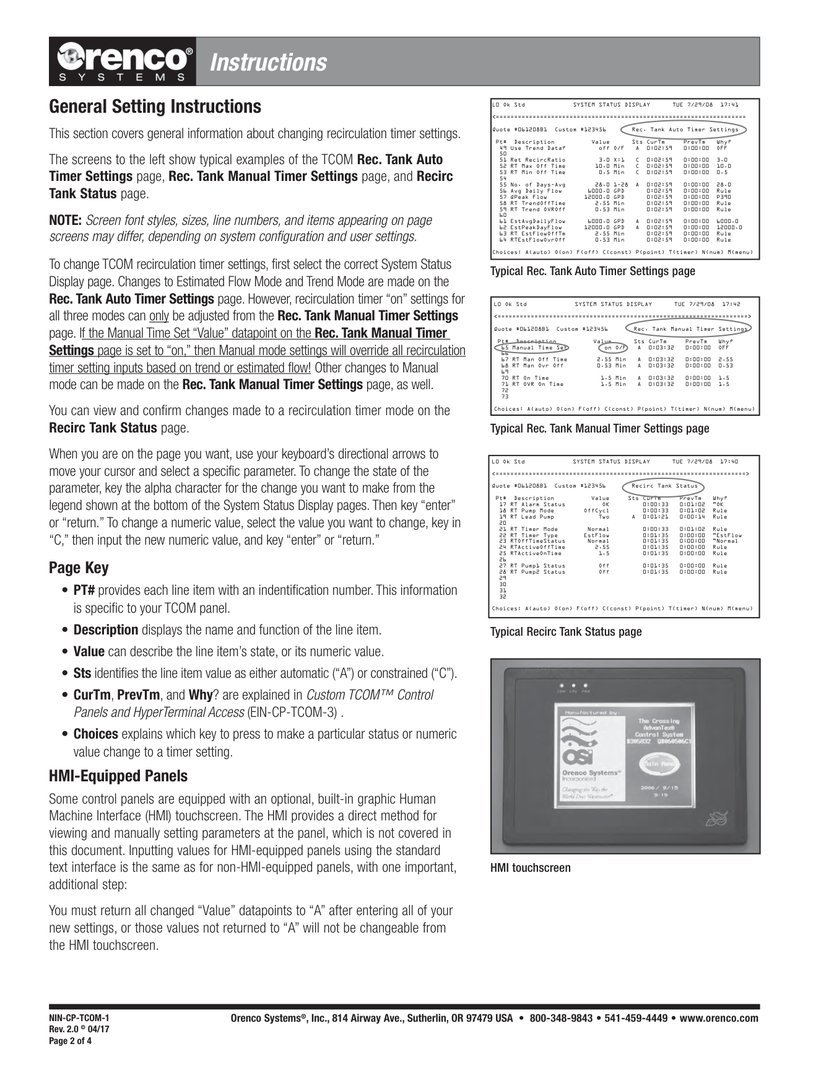
Columns
| Column | Meaning |
|---|---|
| Pt# | Point number for this panel’s program |
| Description | Function name |
| Value | State or numeric setpoint |
| Sts | A = automatic · C = constrained (forced constant) |
| CurTm / PrevTm / Why? | Timing and reason fields |
Keyboard Legend
| Key | Meaning |
|---|---|
| A | Automatic |
| O / F | On / Off |
| C | Constrain — then type a number and Enter |
| P / T / N / M | Point / timer / number / menu |
| Arrow keys | Move the cursor between fields |
| Enter / Return | Confirm a change |
To change a numeric value (authorised only): select the field → C → type the new number → Enter. If an HMI is used on site, return Sts to A when finished or the touchscreen may not be able to edit that point — see 3.2.19.
Main Menus (Run Mode)
Typical top-level structure (firmware-dependent; see EIN-TCOM-SW-2):
| Menu | What it is for |
|---|---|
| Run Mode | Day-to-day operation entry — where almost every monitoring session starts |
| Page Select | Jump to a System Status Display page by letter / name (e, i, j, …) |
| System Status Display | Live Pt# pages — same content as web point menus, denser layout |
| Expanded Reports | User logs, activity, exports — the monthly compliance path |
| Program Mode | Deeper configuration — minimum permission level 2; ENVR / Orenco only |
Expanded Reports → User Log Report
Use case. End of month (or after a high-flow week): path 4) Expanded Reports Menu → 3) User Log Report. Pull logs 17–29 for this plant — 3.2.16 User Logs — so ENVR can file volumes against the O&M schedule. Download procedures: EIN-TCOM-SW-2 (log export section). The web Logs page can view recent lines; Viewer is better when you need the full file.
System Status Pages Used at Lake Bennett
Select these via Page Select (letters match Appendix 14 / web dropdown). Same operational use cases as the web point pages — Status for “what is happening,” Settings for “what the rules are.”
| Page | Name | Typical use case |
|---|---|---|
| e | Pre-Anoxic (PA1) | High-level / transfer-pump alarm — check timings, amps, LPM |
| i | Recirc Auto Timer (RT1) | Load growth or odd idle times — ratio, Trend vs Estimated, clamps |
| j | Recirc Manual / Pumps (RT1) | Confirm Manual Time Set is Off; calibrate four pump LPMs |
| o | Pre-Anoxic Return (PRA) | Return enable / dose after maintenance |
| r | Dose Tank (DT1) | Irrigation not leaving / DT1 high — discharge timing and LPM |
| v | Liquid Chem Feed (LCA) | Alkalinity off after tote work — peri / mixer enables |
| A | Flowmeter (FM1) | Totals look wrong — verify litres per pulse |
| B | High Flow Alarm | High-flow page — confirm max flow setpoint |
| F | UV & Fan | UV fault or odour — disable flags for UV1/UV2 and AX fan |
| H | Alarm Settings | “Why no horn yet?” — activate / page delays |
Full baseline tables: 3.2.16 Point Pages.
Recirculation Timer Modes
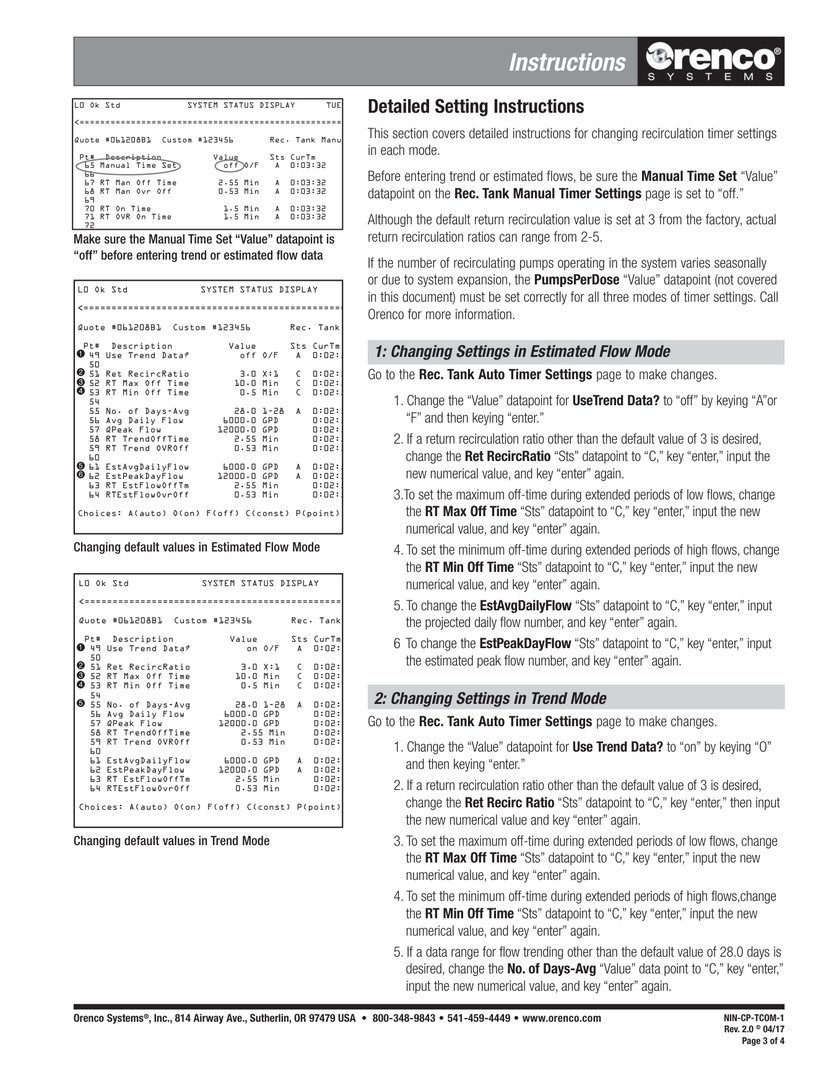
Work these from the Recirc Auto / Manual pages (also covered in Orenco NIN-CP-TCOM-1).
Use case. At startup the plant has little history, so Estimated Flow uses design LPD to pick off times. After roughly two weeks of good data, ENVR flips Use Trend Data On so the timer follows the estate’s real average. Manual is the temporary override for a controlled test — if it is left On, Auto and Trend never run, and the beds get whatever fixed on/off you typed on Page j.
| Mode | Where | When |
|---|---|---|
| Estimated Flow | Auto Timer · Use Trend Data = Off | Startup / little history |
| Trend | Auto Timer · Use Trend Data = On | Preferred after ≥ ~2 weeks of data |
| Manual | Manual Timer · Manual Time Set = On | Special cases only — overrides the others |
Confirm on a Recirc Tank Status-style page (alarm OK, timer type, active on/off, pump status). Leave Manual Time Set Off unless ENVR intentionally constrains the plant.
Further timer-guide pages from the O&M manual:
Optional Graphics in Viewer
T-COM Viewer can show optional site graphics if Orenco supplied a configuration file. Text System Status Display remains the authoritative place for Pt# edits — use graphics for orientation, not as the only source of truth.
Version Control
| Version | Date | Description |
|---|---|---|
| 1.0 | 2026-10-18 | Split from 3.2.16 — Viewer / text console page |
| 2.0 | 2026-10-18 | Operator use cases for Viewer workflows |
| 2.1 | 2026-10-20 | Style guide compliance — H1 matches nav; Title Case headings |
Next Review Date: 2027-04-20